


SharePoint Advanced Management (SAM) bundles security, lifecycle, and governance functions for SharePoint and OneDrive in the SharePoint admin center. The features that support a Copilot deployment become available to SharePoint administrators as soon as at least one Microsoft 365 Copilot license is assigned to a user in the tenant. The lifecycle and security features hold up well in practice - but the governance reports and access reviews hit their limits in medium and large environments.
When a Microsoft 365 administrator needs to review permissions across hundreds of SharePoint sites before rolling out AI assistants, they need a central view of oversharing and unique permissions - so that no sensitive documents become discoverable through organization-wide search or AI systems for users who should never have been granted access.
This article summarizes what SAM delivers today - based on the official Microsoft documentation and on the practical assessments from our webinar "SharePoint Advanced Management - More Control for M365 Admins" from January 2026, in which every SAM feature was shown and evaluated live in the system.
What is SharePoint Advanced Management?
SharePoint Advanced Management is an add-on feature set for Microsoft 365 that provides advanced management functions for SharePoint and OneDrive. The features fall into three blocks: security (access restrictions), lifecycle management (inactive sites, ownership, attestation), and reports & governance (permission reports, site access reviews).
The background: SharePoint never had a central view of who is permissioned where. A single site collection with 20 libraries and tens of thousands of files cannot easily be assessed at file level with built-in tools. This problem becomes critical the moment AI systems surface content through organization-wide search - misconfigured permissions were always there; AI assistants just make them far more visible by actively surfacing relevant documents.
How is SharePoint Advanced Management licensed?
SAM requires a Microsoft 365 base license (Office 365 E3/E5/A5 or Microsoft 365 E1/E3/E5/A5). On top of that, the SAM functions are unlocked through one of several paths:
- At least one Microsoft 365 Copilot license is assigned to a user. The user does not need to be a SharePoint administrator. Purchasing the license alone is not enough - it must actually be assigned.
- The standalone "SharePoint Advanced Management Plan 1" add-on (also called SAM standalone), combined with a SharePoint K, P1, or P2 plan.
- Microsoft 365 E7 (Frontier Suite), which bundles Microsoft 365 E5, Copilot, Microsoft Entra Suite, and Microsoft Agent 365.
Two points admins should plan for:
- Restricted Site Creation is excluded. Restricting site creation by apps is not included in the Copilot license per Microsoft documentation and requires the Plan 1 add-on.
- The coupling to Copilot is deployment support, not a promise. Microsoft explicitly frames the included SAM features as "capabilities to support your Copilot deployment." Anyone anchoring SAM features as a core business process should factor in that the included scope may change in the future.
Which security features does SharePoint Advanced Management include?
The core security functions include Restricted Access Control (RAC) for sites and OneDrive, Restricted Site Creation, the Block Download policy, and Restricted Content Discovery (RCD). They control who can access content, download it, or find it through search and Copilot.
Restricted Access Control (RAC) defines up to ten control groups per site (security or Microsoft 365 groups) - and only people inside those groups get access to the site, regardless of what the SharePoint permissions otherwise allow. This gives highly sensitive sites an additional security layer: even if an owner over-permissions by accident, group membership catches the access. The same logic exists for OneDrive. A practical note from the webinar: because OneDrive is deeply integrated into Teams, an OneDrive restriction can break Teams functionality and produce partly unclear error messages - communicate before rollout.
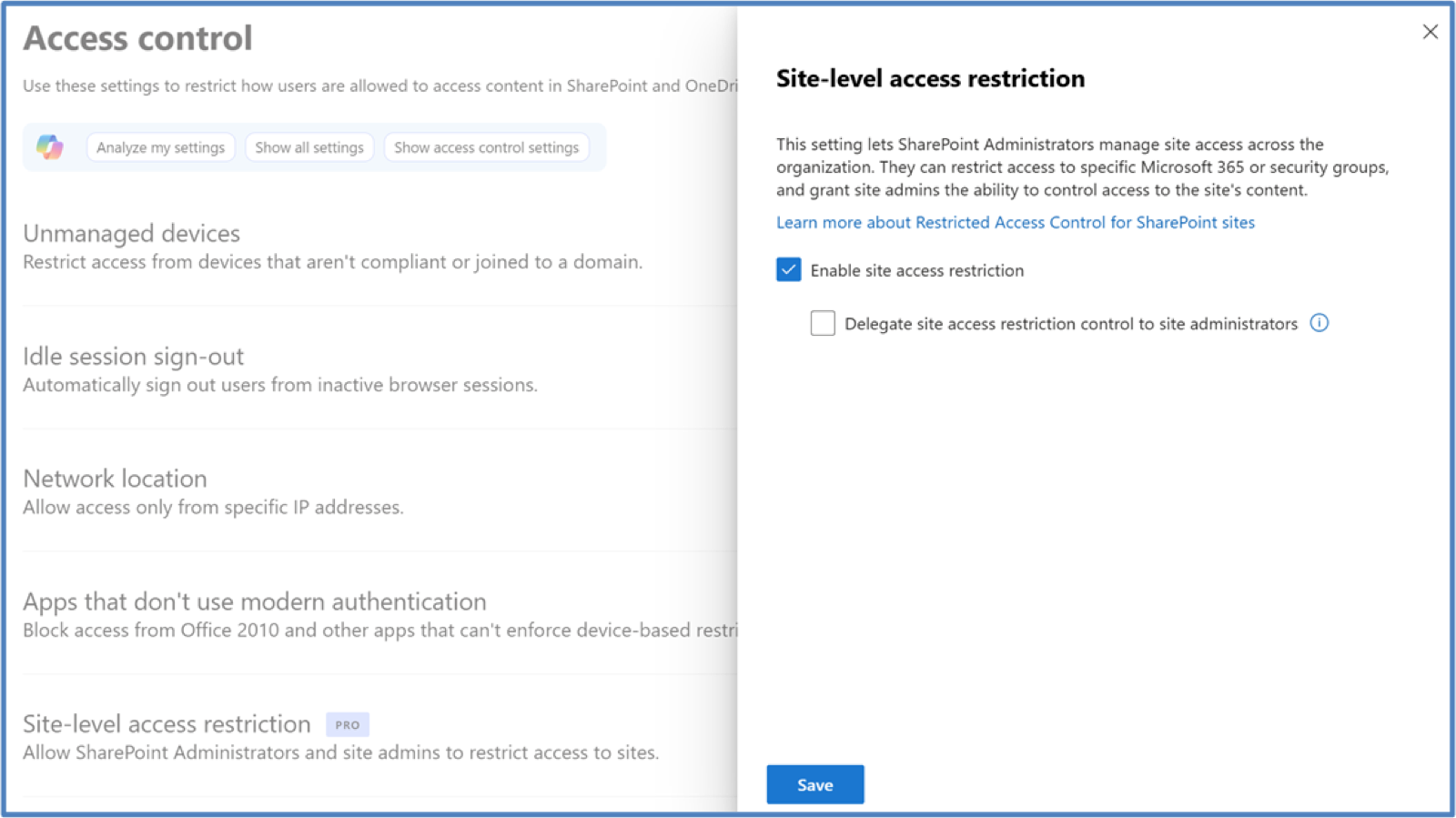
Restricted Site Creation uses an allow or deny list based on security groups to define who may create SharePoint sites - differentiated by site type (communication sites, team sites) across multiple policies. It is configured via PowerShell. The policy also applies to team creation in Microsoft Teams - our webinar test showed the important detail: the team itself is still created, only the team's associated SharePoint site is not (Microsoft documents the analogous behavior for site creation from the web). Distinct from this is the separate feature Restricted Site Creation by apps, which restricts site creation by applications. Important for license planning: per Microsoft documentation, Restricted Site Creation is among the features that are not unlocked through the Copilot license and require the SAM Plan 1 add-on.
The Block Download policy blocks downloading files on SharePoint and OneDrive sites (and, specifically, Teams meeting recordings), putting a site into web-only access. It is far faster to set up than the alternatives via Conditional Access or Sensitivity Labels at container level, which achieve the same effect with considerably more configuration effort.
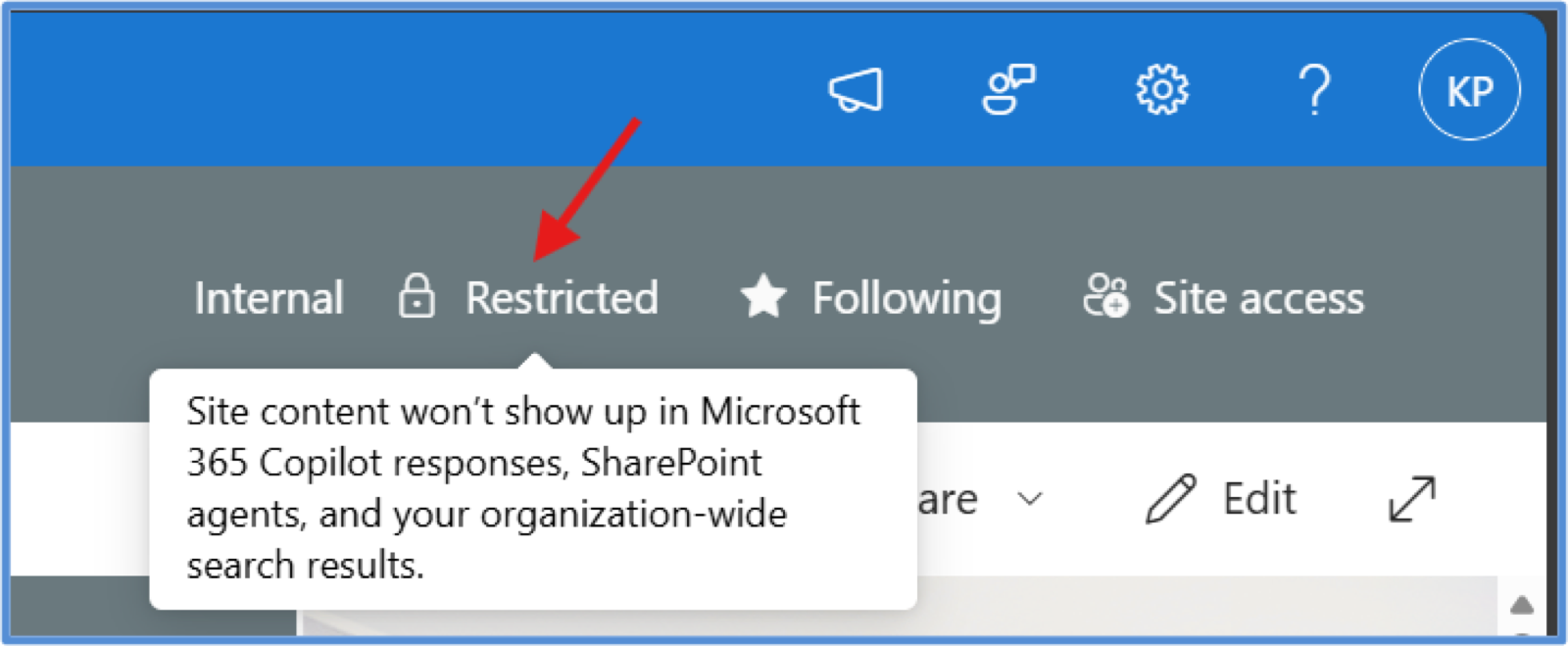
Restricted Content Discovery (RCD) removes a site's content from organization-wide search (SharePoint home, Office.com, Bing) and from Microsoft Copilot responses - and additionally removes the AI entry points on the site itself (the Copilot button, AI actions menus including agent creation, "Create pages with AI"). Important to understand correctly: RCD does not change any permissions and does not remove content from the search index. Anyone who already has access keeps it; Purview features such as eDiscovery and auto-labeling keep working. RCD also does not affect operations on already-open documents - summarizing an open document remains possible. Microsoft explicitly positions RCD as a temporary governance control for the Copilot rollout, not a permanent AI block.
How does site lifecycle management work in SAM?
Site lifecycle management comprises three policy types: inactive site policies (detect and handle inactive sites), site ownership policies (enforce a minimum number of owners/admins), and site attestation (owners regularly confirm that their site's necessity, owners, members, permissions, and sharing settings are correct). All three follow the same configuration pattern and run in two modes: simulation mode (runs once and only generates a report) and active mode (runs monthly, notifies, and enforces actions).
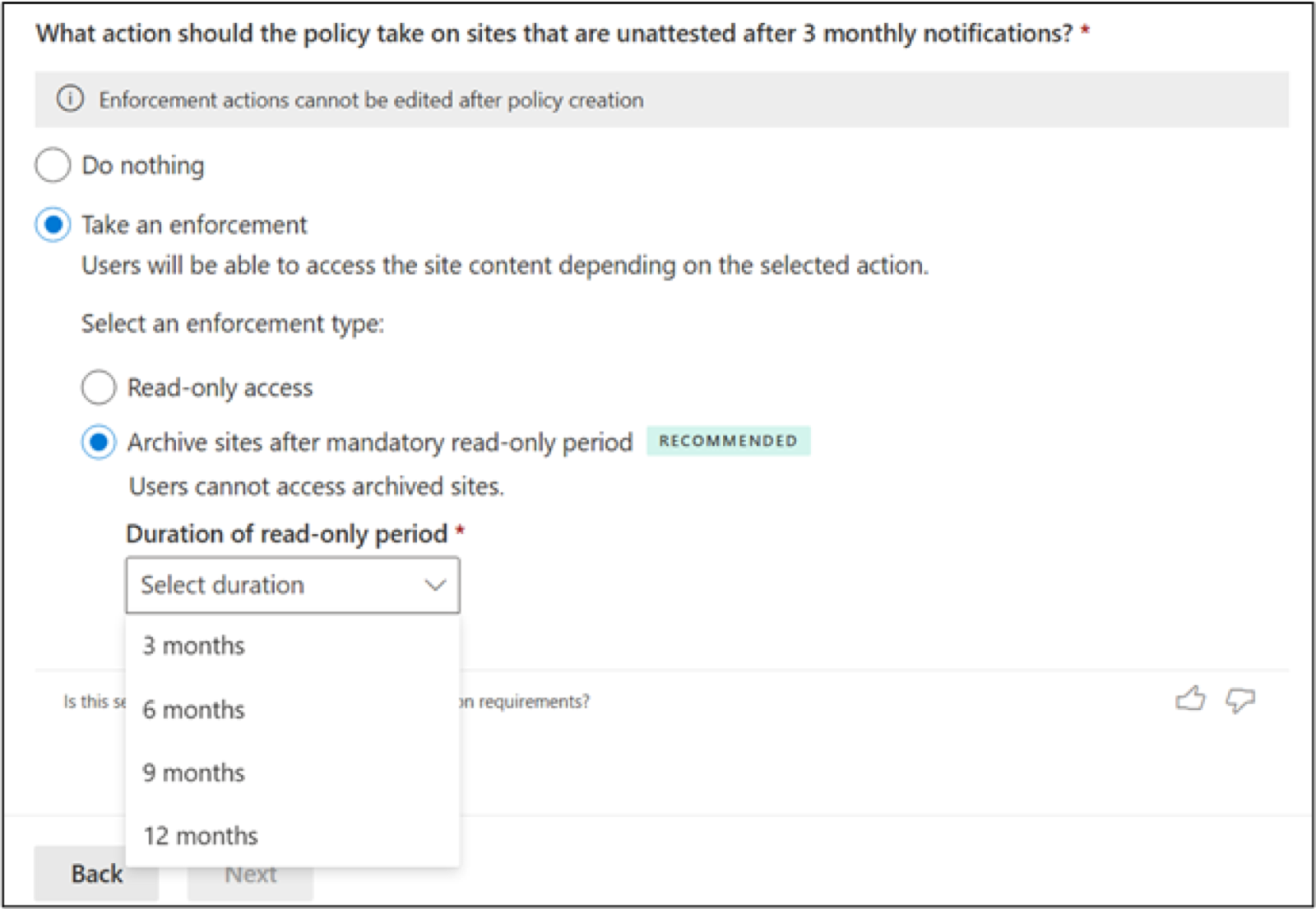
For inactive site policies, admins define a policy scope via filters (site type/templates or a CSV list of up to 10,000 URLs), an inactivity period, and an action that kicks in when no response follows after three monthly notifications: Do nothing (notify only), Read-only (set the site read-only), or Archive after a mandatory read-only period (3, 6, 9, or 12 months), where archiving happens through Microsoft 365 Archive and must be enabled there.
Microsoft documents precisely which activities across SharePoint, Teams, Exchange, and Viva Engage count as "active" and which site templates are in scope - one of the better-maintained pieces of documentation in this area. Note: opening the site via the link in the notification email, as well as subsequent read activity within one hour, does not count as activity. Regular read and write activity through SharePoint and connected workloads, however, can refresh the activity status.
The site ownership policy detects sites with fewer than the defined minimum number of owners or admins and prompts by email to add more. Hard follow-up actions (read-only, archiving after a read-only period) only apply to completely ownerless sites; as long as a site still has at least one owner, the policy relies on trust: if the user does not respond, only the notification cycle repeats.
The lifecycle features are among the strongest functions in SAM. Automatic archiving of inactive sites was long a problem that companies could only solve with their own scripts.
What do the Data Access Governance reports deliver?
The Data Access Governance (DAG) reports in the SharePoint admin center show which sites are affected by oversharing. Microsoft distinguishes two report families:
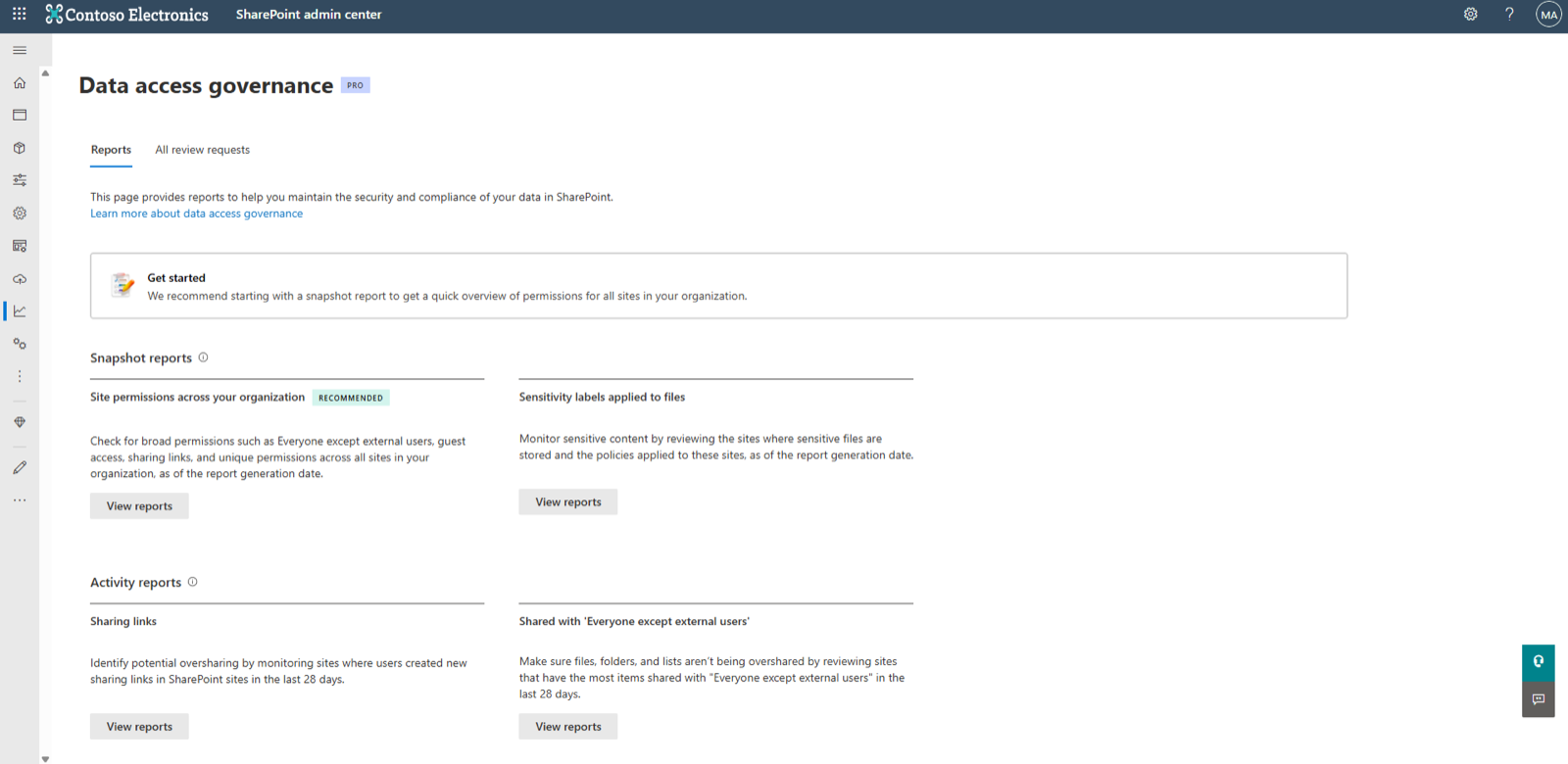
Snapshot reports show the current state as of generation time. These include the site permissions report (sites with the broadest access structure - many users, external guests, "Everyone except external users"), a per-user site permissions report, a sensitivity labels report, and the item-level report "Sites and files shared via special SharePoint groups" for Everyone/EEEU shares.
Activity reports track oversharing activity from the last 28 days: the sharing links report (newly created Anyone/Org/Specific People links) and the "Everyone except external users" report. The 28-day window is an important parameter, because it shows only the most recent activity, not the full inventory.
A practical example from the webinar shows the typical finding: a site collection with 1,334 files had 1,333 unique permissions - so nearly every file carried individually set permissions. Such constellations almost always arise from sharing links and stay invisible without the reports.
This is exactly where the reports add value: they reliably answer the question "which sites do we have a problem on?" For deeper clarification - which items are overshared and how access was granted - Microsoft provides a detailed report for the EEEU/Everyone case that supports cleanup via scripting. The questions of who concretely holds a permission and who created a link, however, are not answered by the standard reports at site level.
Where do the governance reports hit their limits?
The reports have structural limits. In the E5 case (without SAM), activity reports can return up to 10,000 sites. For run times, Microsoft states fixed windows: the first site permissions snapshot can take up to 5 days regardless of organization size, follow-up reports and the other reports up to 24 hours. Activity data is retained for 28 days, and without SAM organizations must first enable data collection - reports then become available 24 hours after enablement, and collection pauses if no report is generated for three months.
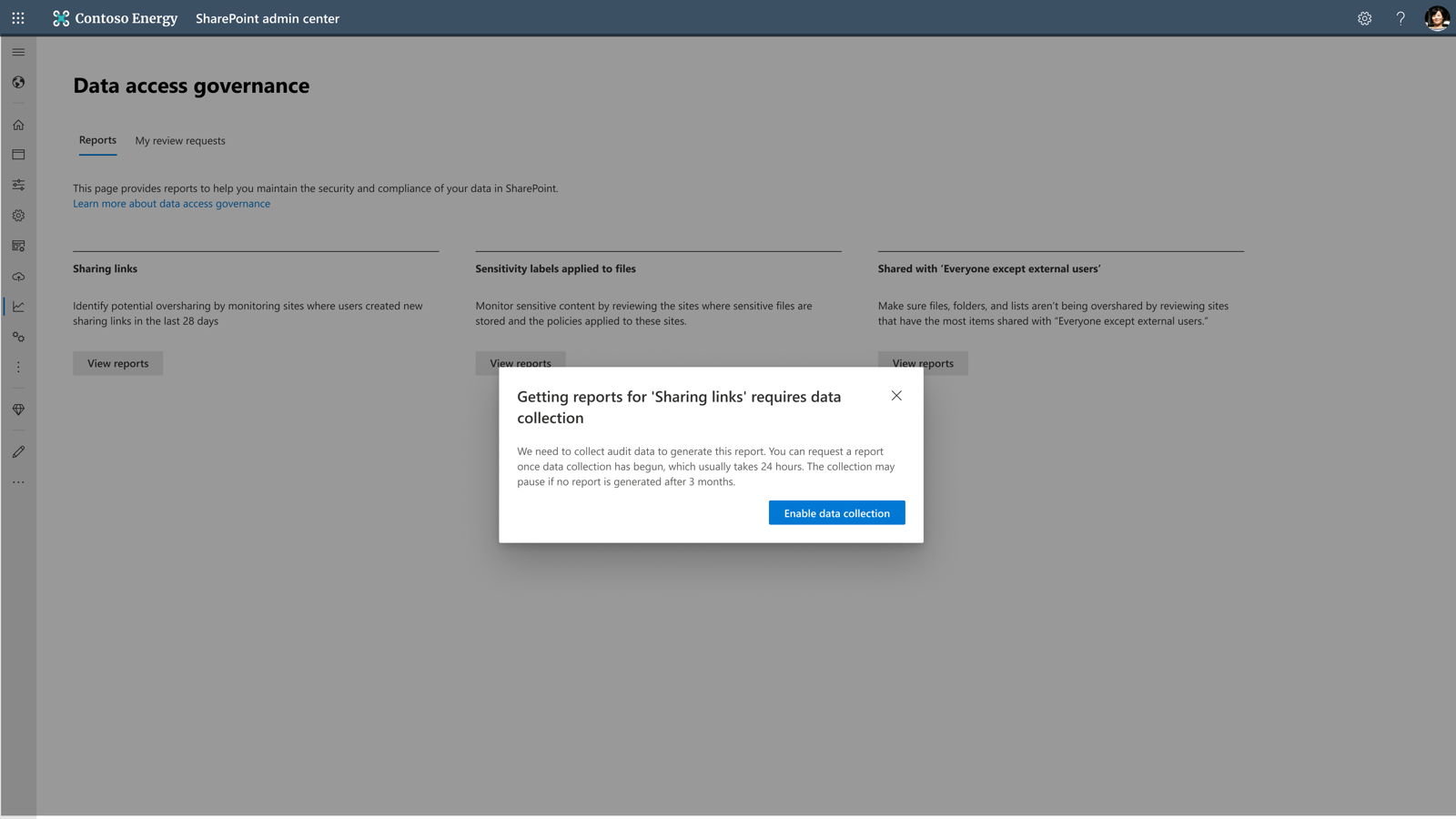
The 28-day window is particularly tricky: a sharing link created 30 days ago that is still active does not appear in the activity report. So the report shows the most recent activity, not the full inventory. The matching "baseline" is provided by the snapshot report - the two families are meant to be used together.
The practically larger gap: on the standard site view, the standard reports lack file level, concrete permission level, and the information about who created a link. Anyone who needs that depth at scale has to script it themselves, lean on the Power Platform, or deploy additional tools. In the webinar, this earned the pointed label of a "classic 65-percent solution."
How do site access reviews work - and what do they lack?
Site access reviews delegate the review of overshared sites to the site owners: the administrator selects sites from a DAG report, owners receive an email tailored to the finding, and they see the affected items in a dedicated review view - including the number of permissioned users, groups involved, and links set. Per Microsoft, up to 100 sites can be initiated directly from the reports' web view, and up to 1,000 reviews per calendar month from the site permissions report; larger volumes go through PowerShell.
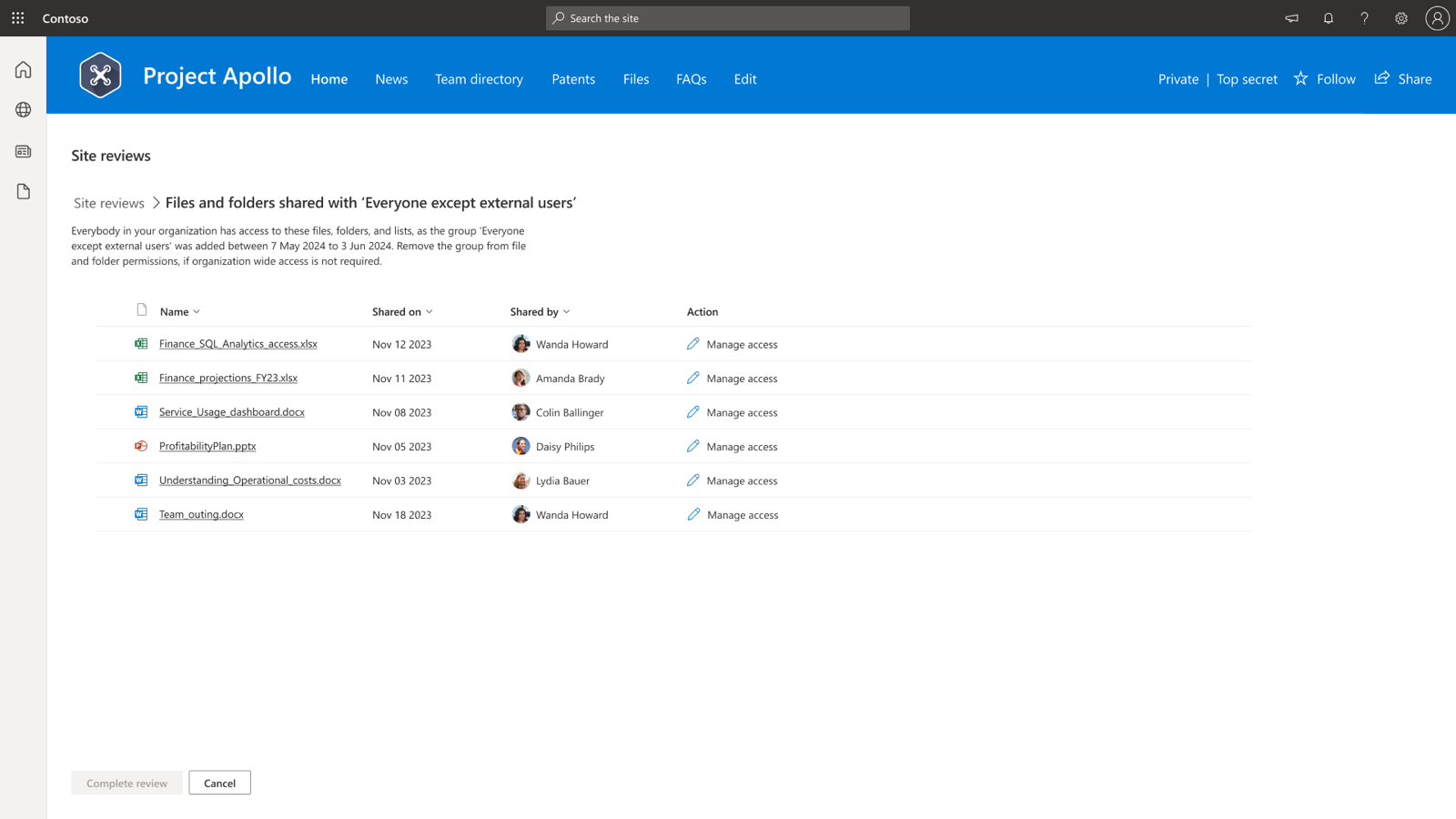
The approach is right: for compliance reasons IT administrators must not see file-level details, and site owners know their content best. In practical execution, though, three things are missing that would make an access review workable in larger environments:
- Permission details at a glance. The owner does see the number of permissioned users per item and the groups involved - but for the concrete who they must open "Manage access" per file. With hundreds of affected files, no user does this consistently.
- Working tools. The review view has no export and no batch actions - only the SharePoint list's per-column sort and filter within the current page. Working systematically across many items depends on manual page-through, item by item.
- Automation and enforcement. There is no rule to automatically remove permissions when a review goes unaddressed. And clicking "Complete Review" closes the process regardless of whether every item was actually addressed - a completeness check is missing.
For a single small site with few documents, the overview may be enough. But that is exactly the point: access reviews are not a one-off problem - they are a recurring process across hundreds of sites. As company size and permission complexity grow, the built-in tools no longer allow a consistently clean, repeatable access review.
Which organizations is SharePoint Advanced Management sufficient for?
Two things need to be kept apart. SAM does two jobs well that are, however, not the core of an access review: retiring workspaces in an orderly way (lifecycle) and locking down access (security). For the actual question - who is permissioned on which files, and how do you clean that up in a structured way - the built-in tools provide no viable instrument once the tenant grows beyond a handful of sites. The following assessment comes from the practical evaluation in the Valprovia webinar:
| SAM area | Practical assessment | Rationale |
|---|---|---|
| Site lifecycle management | Solid for retirement | Detects inactive sites, simulation mode, multiple policies, well-documented activity logic. Caveats: automatic archiving runs through the separate Microsoft 365 Archive (must be enabled), action only kicks in after three monthly cycles, and an owner policy without a follow-up action relies on trust. Solves no access review. |
| Security (RAC, Block Download, RCD) | Solid for lockdown | Fast to set, effective, simpler than label / Conditional Access setups. Caveats: RAC must be configured per site (no global switch), and RCD is a temporary Copilot control per Microsoft, not a permanent one. Locks access - does not review it. |
| Governance reports | A starting point only | Show which sites have a problem, but at standard level not which files/permissions and who shared; 28-day window; first snapshot takes up to 5 days. |
| Site access reviews | Not practical from medium size | Only the SharePoint list default (per-column sort/filter within the current page); no export, no batch actions, no automation, no completeness check. Exactly the area a company genuinely needs from a noticeable size onward - and the one SAM leaves open. |
So the two "solid" rows are no reason to relax: lifecycle and security each do their own job, but neither answers the access-review question. That question - reporting at file and permission level, enforcement, export - stays open with the built-in tools and is the part that creates work and risk in medium and large tenants.
How can the gaps in access reviews be closed?
SAM offers item-level reporting for specific scenarios - notably "Everyone" and "Everyone except external users" - but no complete item-level evaluation across all users, groups, and sharing-link types. That complete evaluation, export, and enforcement require custom PowerShell scripts, Power Platform solutions, or specialized tools with the built-in tooling. This is exactly where Valprovia Access Reviews comes in and closes the gaps in the native SAM functions.
The module extends the Microsoft built-in tools with three capabilities they lack: it removes permissions automatically when a review is not addressed within the defined deadline. It delivers reporting at file and permission level - including who is permissioned. And it exports all results, so reviews remain documentable and auditable. Unlike the native site access reviews, where unaddressed reviews stay without consequence, the review process becomes enforceable - even in tenants with thousands of sites and complex permission structures.
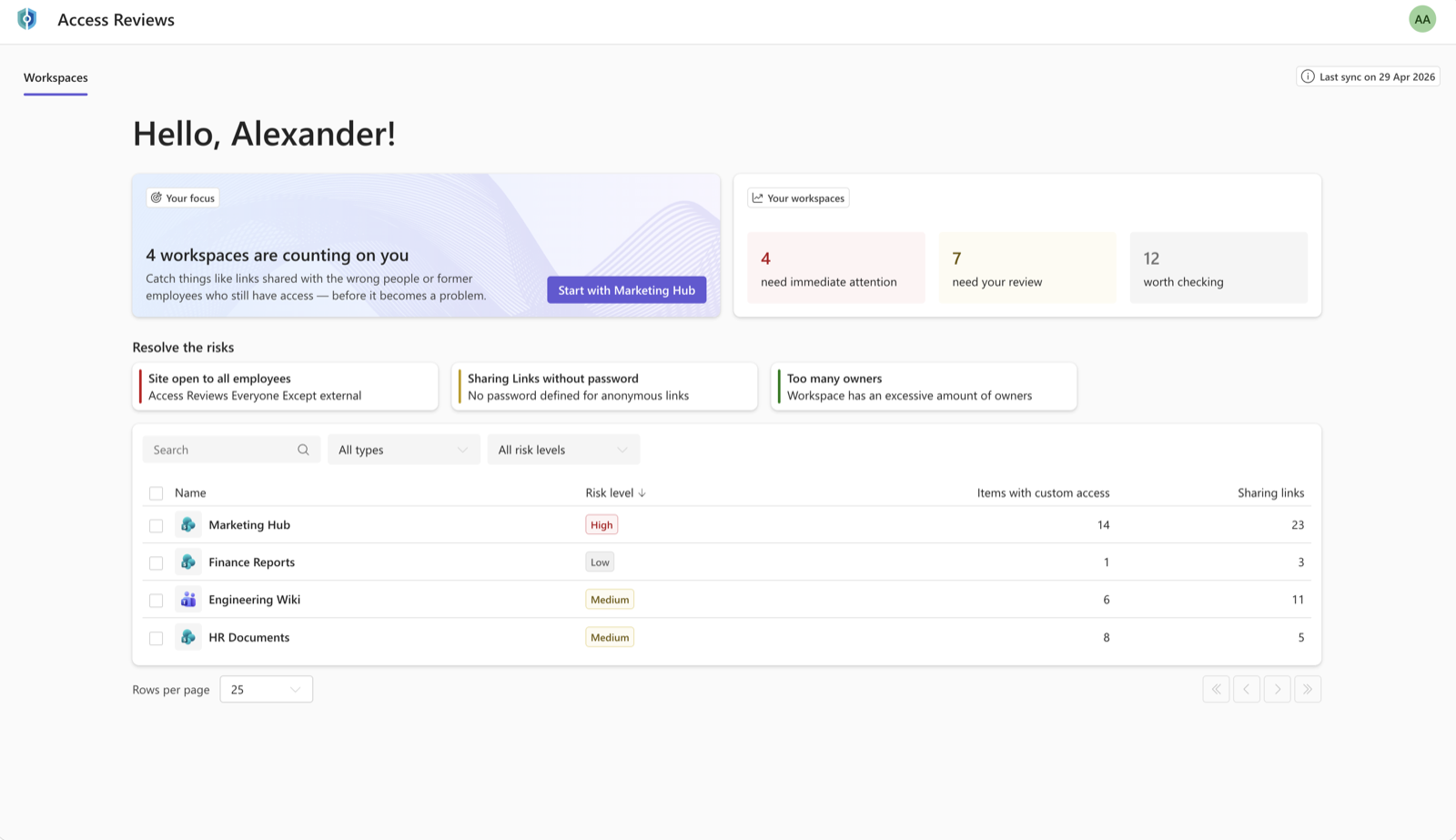
That is the remediate side. One layer earlier sits preventive Microsoft 365 Governance: when end users lose their admin rights already at provisioning and workspaces are only created from IT templates, the 1,333 unique permissions never arise in the first place - there is simply less to review. SAM (detect), Governance (prevent), and Access Reviews (remediate) mesh together rather than compete.
How the Microsoft built-in tools combine into a complete access review across all permission layers - including group memberships via Entra ID Governance - is covered in depth by the article Access Reviews in Microsoft 365.
Frequently asked questions about SharePoint Advanced Management
Is SharePoint Advanced Management free?
SharePoint Advanced Management is not free in general, but is included at no additional cost as soon as at least one Microsoft 365 Copilot license is assigned to a user in the tenant. A base license is also required (Office 365 E3/E5/A5 or Microsoft 365 E1/E3/E5/A5). Alternatively, SAM can be licensed as a standalone add-on (Plan 1) combined with a SharePoint K, P1, or P2 plan.
Which SAM features are not included in the Copilot license?
Restricted Site Creation by apps is not included in the Copilot license and requires the SharePoint Advanced Management Plan 1 add-on. Microsoft also frames the SAM features included in Copilot as capabilities to support the Copilot deployment - so the included scope may change in the future.
How long does it take to generate the Data Access Governance reports?
For the Data Access Governance reports Microsoft states fixed run-time windows: the first site permissions snapshot can take up to 5 days regardless of organization size, the other reports up to 24 hours. Activity data is retained for 28 days; without SAM, organizations must first enable data collection, after which reports become available 24 hours later. In the E5 case, activity reports can return up to 10,000 sites - but without additional detail at file or permission level on the standard site view.
Can SharePoint Advanced Management remove permissions automatically?
No. The site access reviews in SharePoint Advanced Management notify site owners and show affected items, but do not remove permissions automatically. If an owner does not respond to a review, the state stays unchanged; and clicking "Complete Review" is not checked for completeness. Automated permission removal requires custom scripts or add-on solutions such as Valprovia Access Reviews.
Does the sharing links report capture all existing sharing links?
No. The sharing links report is an activity report and only captures sharing links newly created in the last 28 days. Older links that are still active do not appear in it. The full inventory, or baseline, is provided by the snapshot reports - the two report families are meant to be used together.
Does Restricted Content Discovery prevent all AI access to documents?
No. Restricted Content Discovery removes site content from organization-wide search and from Microsoft Copilot responses, and removes the AI entry points on the site. But it does not change permissions and does not remove content from the search index; operations on already-open documents (such as summarizing an open document) remain possible, and Purview features keep working. Microsoft positions RCD as a temporary control for the Copilot rollout, not a permanent AI block.
Conclusion
SharePoint Advanced Management delivers real progress with lifecycle management and the security features - progress previously only achievable through in-house development. For governance reports and site access reviews, the built-in tools reliably show where problems lie - but at standard level not consistently which files and permissions are affected, and they enforce nothing automatically. This is exactly the gap Valprovia Access Reviews closes: automatic permission removal on unaddressed reviews, reporting at file and permission level, and a complete export.
Book a demo: talk to us about access reviews in your tenant.


