Inactive and orphaned teams pile up unnoticed - with stale data, unnecessary permissions, and content Microsoft Copilot can still search. Lifecycle management detects them automatically and decommissions them in an orderly way: read-only, hidden, deleted - rule-based and with advance warning to the owners.
Inactive teams are workspaces without chat, file, or meeting activity over a defined period. Orphaned teams have no active owner left - for example because the creator left the company. Both are a governance risk: their files and permissions persist, nobody maintains them, and Microsoft Copilot can still search their content. Lifecycle management is the process of detecting such workspaces automatically and decommissioning them in an orderly way, instead of hunting them down manually.
Rules per template
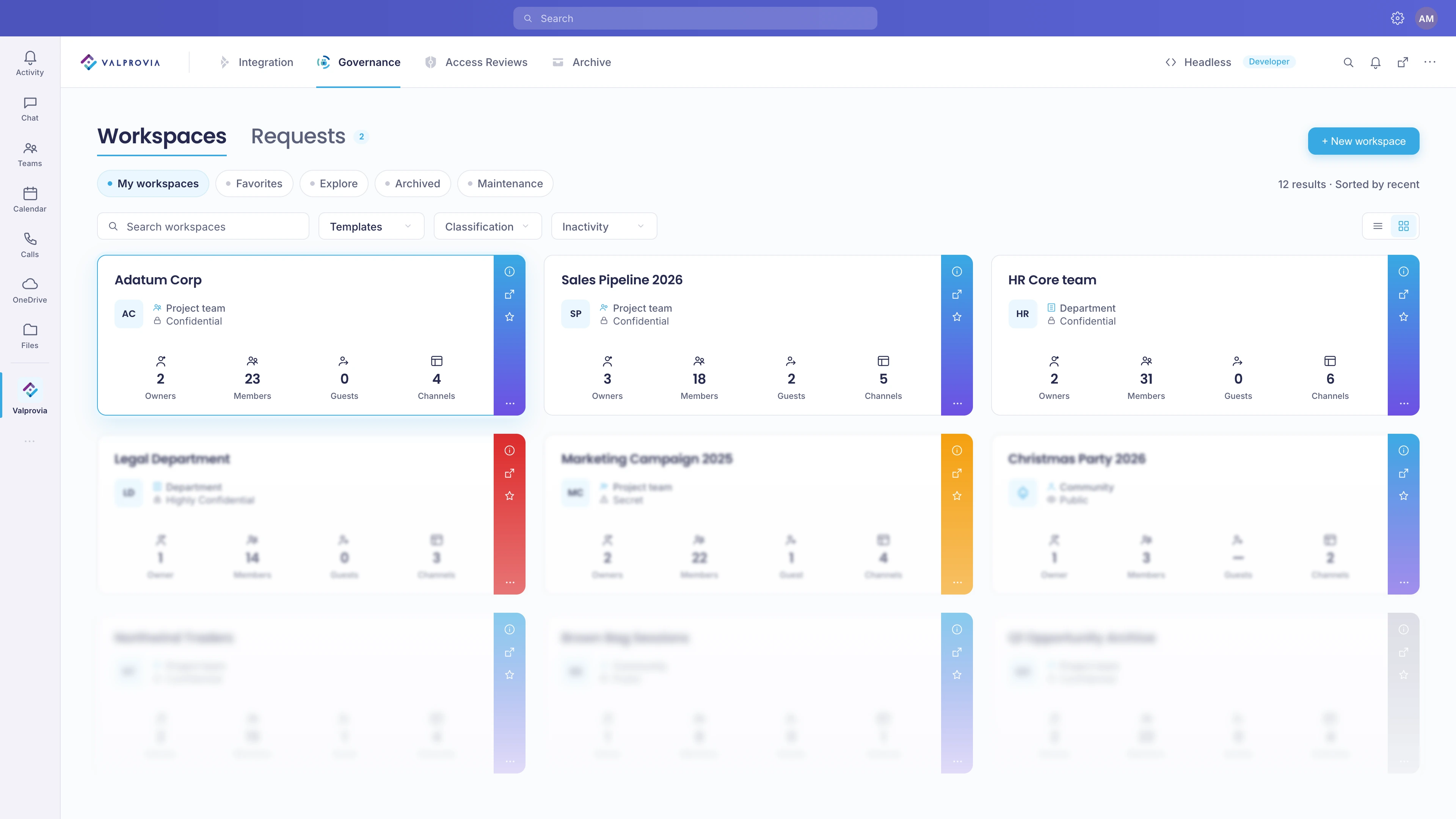
Lifecycle management governs the entire lifecycle of a workspace - from creation through inactive phases to final deletion. Rules are defined per template; every workspace created from it inherits them automatically. Project teams can be decommissioned after 365 days, department teams after 90 days of inactivity. Available for Microsoft Teams and SharePoint site collections.
How inactivity is measured
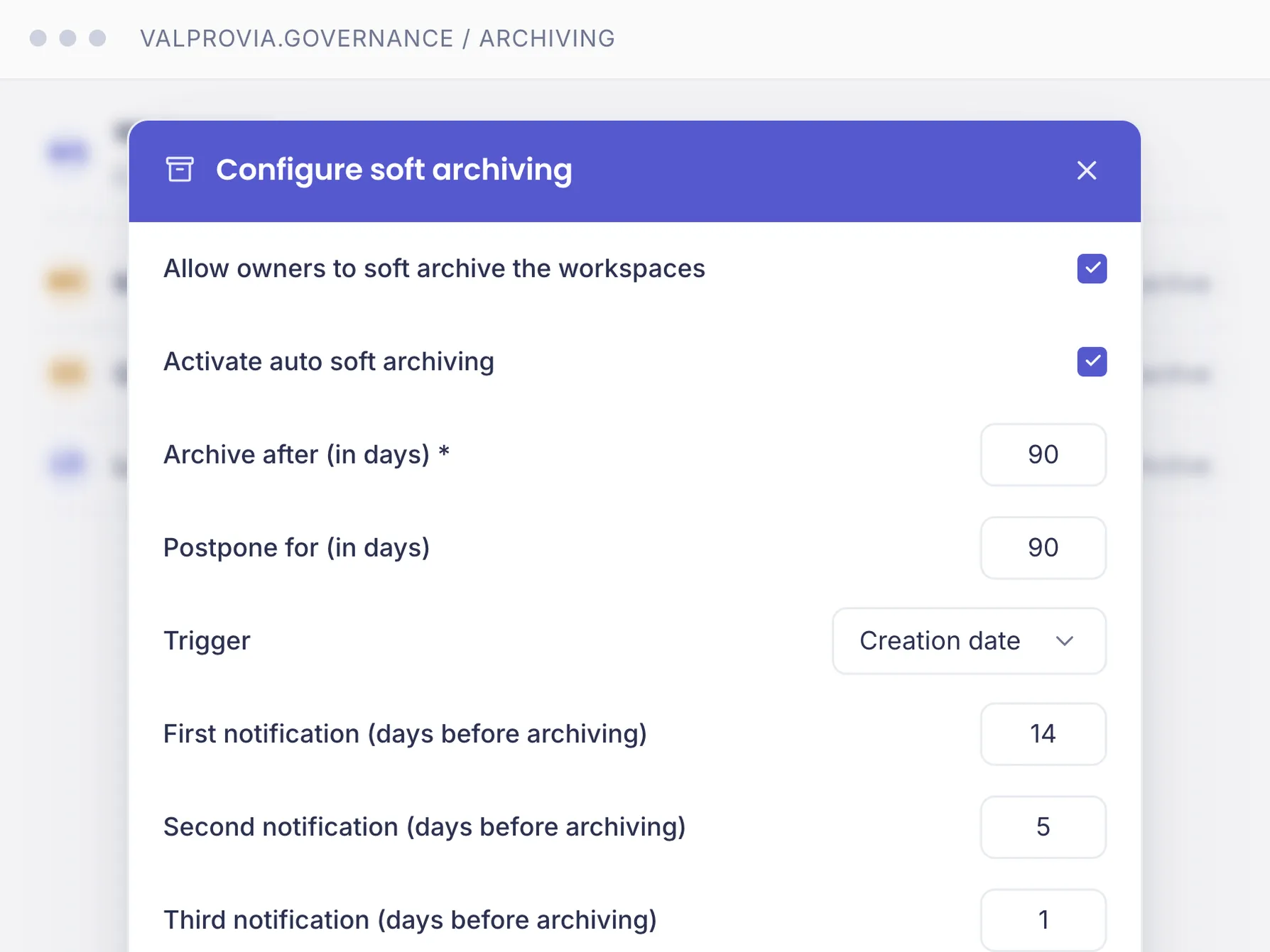
A trigger defines when counting starts: creation date, inactivity, or a metadata date field. Inactivity is detected by default via the O365 Teams Activity Report (messages, channel posts, file uploads and edits, meetings) - each activity resets the countdown. For more granular criteria, Extended Archiving uses KQL queries against the SharePoint search index, e.g. a specific library or metadata field.
Three-stage decommissioning
The lifecycle runs in three stages: soft archiving (read-only), hard archiving (team hidden) and deletion - the stages cascade automatically. The read-only decommissioning itself is covered by Microsoft Teams archiving. The permanent offload of inactive files into your own Azure Blob Storage is handled by the separate Valprovia Archive module. Part of preventive Microsoft Teams governance.
Part of the Valprovia Governance module
Lifecycle management is part of the Governance module
Lifecycle management is not a standalone tool - it is a capability of the Valprovia Governance module, alongside provisioning, external user management and self-service. One license, one tenant, all governance capabilities.
Frequently asked questions about lifecycle management in Microsoft Teams
What is the difference between inactive and orphaned teams?
Inactive teams have had no activity (chats, files, meetings) over a defined period; orphaned teams have no active owner left. A team can be both at once. Both increase the attack surface and burden the environment with stale content that Microsoft Copilot can still search - which is why they should be detected and decommissioned.
Why are the built-in Microsoft tools not enough for lifecycle management?
Microsoft 365 provides activity reports and knows group expiration policies, but no cascading, rule-based decommissioning per workspace type and no owner advance-warning with a postpone option. Finding inactive or orphaned teams with the built-in tools requires PowerShell scripts; an orderly, template-based decommissioning cannot be modeled that way.
How does Valprovia detect that a team is inactive?
By default via the O365 Teams Activity Report (messages, posts, file uploads and edits, meetings) through Microsoft Graph. Optionally via SharePoint search KQL queries for granular criteria. Every detected activity resets the inactivity countdown.
What lifecycle actions are there?
Three stages: soft archiving (workspace read-only, stays visible), hard archiving (Teams only - users removed, team hidden, documents read-only via SharePoint) and deletion. The stages cascade automatically based on the deadlines configured per template.
Am I notified before an automatic action?
Yes. Before every automatic action all owners receive emails in up to three configurable stages (e.g. 30, 15 and 1 day before) with the workspace name, the planned date and a link to postpone.
Can owners postpone an action?
Yes, if allowed in the template - via the postpone link in the notification. The number of postponements can be capped by a Max Extension Count; when postponed, the following dates are recalculated proportionally.
Can I set different rules for different team types?
Yes. Lifecycle rules are configured per template; each workspace inherits its template's rules - e.g. project teams after 365 days, department teams after 90 days of inactivity.
Does lifecycle management also apply to SharePoint sites?
Yes, for SharePoint site collections - without the hard-archiving stage, since soft archiving already achieves full read-only access there.
The workspace lifecycle, automated and under control
See how Valprovia Governance detects inactive teams and decommissions them in an orderly way. Talk to one of our experts.