


Some enterprises operating in a shared Microsoft 365 tenant restrict which application permissions a third-party solution can hold. It is a considered position: application-context permissions such as Group.ReadWrite.All give a solution tenant-wide write access to every Microsoft 365 group, and a security team may prefer that scope be narrower.
For SharePoint Governance, this creates a specific challenge. On demand, when an end user requests a new workspace, the solution normally needs to create a Microsoft 365 group and its associated Teams and SharePoint components — operations that traditionally rely on those tenant-wide permissions.
Valprovia Governance includes a built-in deployment mode designed for exactly this situation: Workspaces Pooling, used together with a delegated-only permission mode.
The application permissions in question
Two permissions are usually at the centre of the conversation:
- Group.ReadWrite.All in the application context grants tenant-wide write access to every Microsoft 365 group.
- Sites.FullControl.All in the application context grants full control over every SharePoint site collection across the tenant.
For many organisations these permissions are fine, and the governance solution is trusted to use them appropriately. For others — particularly country-level deployments in a group tenant, or organisations with strict third-party security requirements — the position is that a governance solution should not hold tenant-wide write access to resources outside its own scope.
Workspaces Pooling is the deployment mode that lets Valprovia Governance operate under this constraint.
Introducing Workspaces Pooling
Rather than creating a new Microsoft 365 group each time an end user requests a workspace, the IT department pre-creates a set of empty Teams groups in advance. These groups sit in a pool, waiting to be claimed. When a user requests a new workspace, Valprovia Governance takes one from the pool, configures it according to the governance rules, and delivers it to the user.
A helpful way to picture it: think of it like a car rental. The cars (Teams groups) are purchased and prepared in advance. When a customer (end user) arrives, they receive an available car that matches their requirements. The car is then personalised (configured) for them before being handed over.
Because the groups already exist by the time a request is submitted, Valprovia Governance never needs to create groups at runtime — the tenant-wide permissions that would otherwise be required are simply not needed.
How Pooling works
Workspaces Pooling consists of two parts: Producer and Consumer.
Producer — the IT department
A member of the IT team runs a PowerShell script provided by Valprovia. The script takes a CSV file describing how many pool groups to create for each combination of Governance Template and Security Level. For each group, the script:
- Creates a Microsoft 365 group and applies basic configuration (for example, whether guests can join).
- Assigns a dedicated service user as owner and member.
- Converts the group into a Teams group.
- Applies the SharePoint sharing settings that correspond to the Security Level.
- Stamps a marker into a configurable group property that identifies which Governance Template and Security Level the group was prepared for.
The script is run by an IT administrator with the appropriate rights to create Microsoft 365 groups, create Teams, and act as a SharePoint administrator. It has a preview mode for validating the CSV before executing any changes.
Consumer — Valprovia Governance
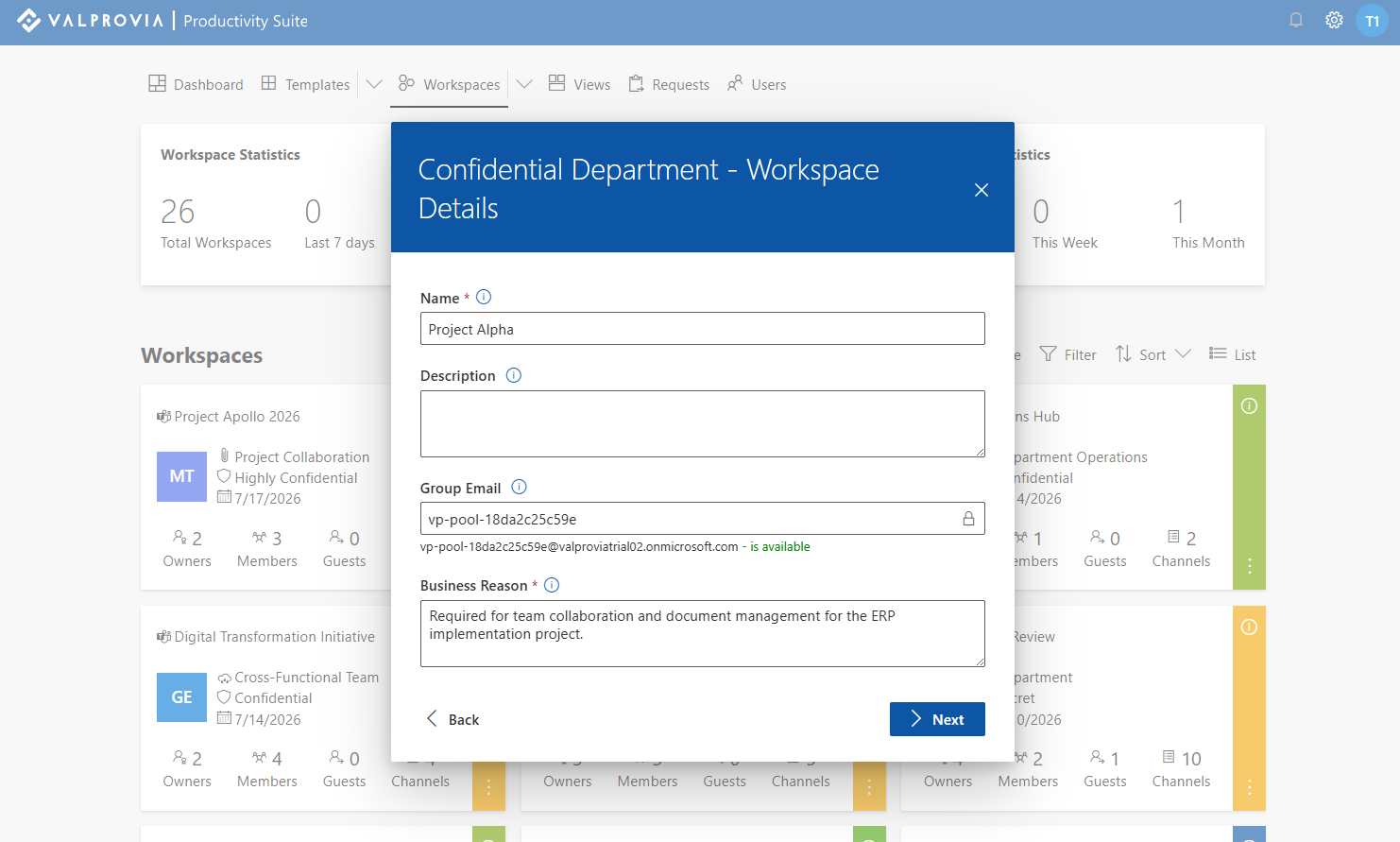
When an end user requests a workspace, Valprovia Governance looks through the pool for an unclaimed group whose marker matches the Governance Template and Security Level the user selected. If a matching group is available, it is claimed (marked as taken so no other request can grab it), and provisioning continues: display name, members, channels, and any other template-driven settings are applied to the reserved group.
If no matching group is available, the request is declined and the IT department is notified to replenish the pool.
Governance Templates and Security Levels
Two concepts matter here for readers less familiar with Valprovia Governance. A Governance Template is a blueprint for a type of workspace — naming rules, default channels, approval steps. A Security Level is a package of security-related settings — guest access, SharePoint sharing, group visibility — that gets applied when a Template is used.
The pool needs one set of groups for each combination of Template and Security Level that end users can select, because the pooling feature runs under limited SharePoint permissions. Those permissions do not allow sharing settings to be changed after a group is created, so the setting must be baked in up front. If your organisation offers, say, "Project Team" workspaces with three Security Levels, the pool contains three separate flavours of Project Team groups.
What the workspace-creation experience looks like
Under Pooling, the workspace-creation form is slightly leaner than under a standard deployment. A few values are assigned automatically from the pool rather than typed by the requester — most visibly the workspace's Team email address, which appears read-only in the form and follows a pre-defined, non-editable naming schema set when the pool was created.
Configuring templates in the Admin Portal is simpler too. Settings whose values are decided when the pool group is created — the SharePoint site theme, the sensitivity label, the mail-convention prefix — are no longer shown for administrators to configure per Template. Every workspace of a given type is already configured; the Template no longer needs to describe those values.
If a user chooses a combination for which no pool group is available, the request cannot proceed. Valprovia Governance shows an explicit message rather than accepting the request, and the IT department is notified so they can top the pool up.
What the IT team keeps
The core benefit for the IT team is that the governance solution runs on a small, well-scoped set of delegated permissions rather than the tenant-wide permissions a standard deployment would need. The Valprovia Governance service user is a regular user account — not an administrator — protected by MFA and Conditional Access policies, and it can only manage the workspaces in its own pool. It has no access to any other groups, teams, or SharePoint sites in the tenant.
Because pool groups are created by the IT department, the IT department retains full ownership of every governed team. Group creation, initial configuration, and pool replenishment are all IT-driven, run under an IT administrator's own credentials, on a schedule the IT team decides.
Lifecycle actions still work
Archiving, restoring, and deleting a workspace all continue to work under a Pooling deployment. Valprovia Governance uses Microsoft Graph paths that do not require the tenant-admin permissions that were deliberately not granted, so the standard lifecycle actions remain available to administrators and workspace owners through the same interfaces they would use in any Valprovia Governance deployment.
What the end user sees
From the end user's perspective, a Pooling deployment feels the same as any other Valprovia Governance deployment. The workspace-creation flow is unchanged in shape: pick a Template and Security Level, enter a name, submit the request, wait for approval (if configured or required), and receive a notification when the workspace is ready.
A couple of small technical details are worth naming, because they surface only in edge cases: the SharePoint site URL retains the pool format rather than matching the workspace name, and the same is true of the email address unless it is renamed. Renaming is not wired into the standard product flow today, but it is available as an add-on. Neither shows up in most end-user workflows.
A few things to plan for
Before enabling a Pooling deployment, a few considerations are worth thinking through:
- Sizing the pool per combination of Template and Security Level. Under-sizing one combination means requests for that combination will be rejected until the pool is topped up. Estimating demand per workspace type is an IT-team decision made together with Valprovia during rollout.
- Deleted workspaces do not return to the pool. Replenishment happens by running the pool script again, not through automatic recycling.
- Pool monitoring is part of the release. Valprovia Governance surfaces pool inventory and notifies the IT team when it runs low; topping the pool up remains an IT-team action.
- One SharePoint lifecycle action is off the table: restoring a site from the recycle bin. Recovering a deleted site collection requires tenant-wide SharePoint admin permissions, and those are exactly what the Pooling model is designed not to grant.
Where Pooling fits
Workspaces Pooling is included as a standard product feature in Valprovia Governance — it is not a custom workaround.
It is the right deployment mode for organisations whose Global IT restricts what tenant-wide application permissions a third-party solution can hold, and for scoped deployments inside a shared tenant — whether the scope is a country, a department, or one of many subsidiaries in a group holding — where the governance solution should only reach the resources it directly manages.
For organisations without these constraints, the standard Valprovia Governance deployment remains available, and both modes are supported as first-class options.
In summary
Workspaces Pooling lets Valprovia Governance operate in Microsoft 365 tenants where broad tenant-wide application permissions are not available or not desired. The IT department pre-creates pool groups up front, retaining full ownership of every group and every SharePoint site the governance solution manages. End users experience the workspace-creation flow as they always have. Lifecycle actions remain available to workspace owners and administrators through the same Valprovia Governance interfaces, using Microsoft Graph paths that the service user is authorised to invoke.
Frequently asked questions about Workspaces Pooling
-
What is Workspaces Pooling in Valprovia Governance?
Workspaces Pooling is a deployment mode where the IT department pre-creates a set of empty Teams groups in advance. These groups sit in a pool, waiting to be claimed. When a user requests a new workspace, Valprovia Governance takes one from the pool, configures it according to the governance rules, and delivers it. Because the groups already exist, Valprovia Governance never needs to create groups at runtime.
-
Which tenant-wide permissions does Workspaces Pooling avoid?
Two application-context permissions are usually at the centre: Group.ReadWrite.All grants tenant-wide write access to every Microsoft 365 group, and Sites.FullControl.All grants full control over every SharePoint site collection across the tenant. Because pool groups are pre-created by the IT department, Valprovia Governance does not need to create groups at runtime and does not require these tenant-wide permissions. The solution runs on a delegated-only permission set.
-
Do lifecycle actions work under Workspaces Pooling?
Archiving, restoring, and deleting a workspace all continue to work under a Pooling deployment, because Valprovia Governance uses Microsoft Graph paths that do not require tenant-admin permissions. There is one exception: restoring a deleted site collection from the recycle bin requires tenant-wide SharePoint admin permissions, which the Pooling model is deliberately designed not to grant.
-
Do end users notice a difference with Workspaces Pooling?
From the end user's perspective, a Pooling deployment feels the same as any other: pick a Template and Security Level, enter a name, submit the request, and wait for approval if required. The creation form is slightly leaner because a few values are assigned automatically from the pool — most visibly the read-only Team email address. The SharePoint site URL retains the pool format, which surfaces only in edge cases.
-
What happens when no matching pool group is available?
If a user chooses a combination of Governance Template and Security Level for which no pool group is available, the request cannot proceed. Valprovia Governance shows an explicit message rather than accepting the request, and the IT department is notified so they can top the pool up. Replenishment happens by running the pool script again; deleted workspaces do not return to the pool automatically.


