


Introduction
Valprovia Governance introduces Access Profiles: custom roles defined in workspace templates and automatically linked to SharePoint permission groups. Project managers select roles from dropdowns when adding members, with permissions configured automatically in the background.
What Are Access Profiles — and Why Now?
Organizations have long struggled with Microsoft Teams' limitation of only two roles — Owner and Member. External guests receive implicit Member status without distinct role categories. This creates practical challenges: project managers need different permissions than team members, and external partners need different access than steering committees.
Previously, the solution required manual SharePoint configuration after each workspace creation. Access Profiles now provides a better approach by enabling custom roles linked to SharePoint permission groups. When someone adds a person and assigns a role, permissions are set automatically.
The Problem: Why Project Permissions in Microsoft 365 Lead to Chaos
Typical Scenario
A consulting project requires:
- Project manager: full access and approval authority
- Team members: document editing without structural changes
- Controlling officer: read-only access to financial documents
- External consultant: access only to shared project documents
The Dilemma
Microsoft Teams recognizes only Owner or Member roles, forcing administrators into two problematic choices:
- Assign everyone as Members with identical permissions (security risk)
- Manually configure SharePoint groups after each workspace creation (error-prone, unscalable)
Organizational Scale
Organizations managing dozens or hundreds of parallel projects face compounded challenges:
- Inconsistent permissions across projects
- Forgotten permission assignments
- Security gaps
- IT teams overwhelmed with permission requests
This problem extends to pure SharePoint workspaces, where the absence of consistent SharePoint Governance creates sprawl: giving users extensive management permissions leads to uncontrolled structural changes, while restricting permissions creates bottlenecks requiring IT intervention for every modification.
How Does Access Profiles Solve This Problem?
Configuration occurs once in the workspace template. Every new workspace automatically inherits the defined roles and permissions.
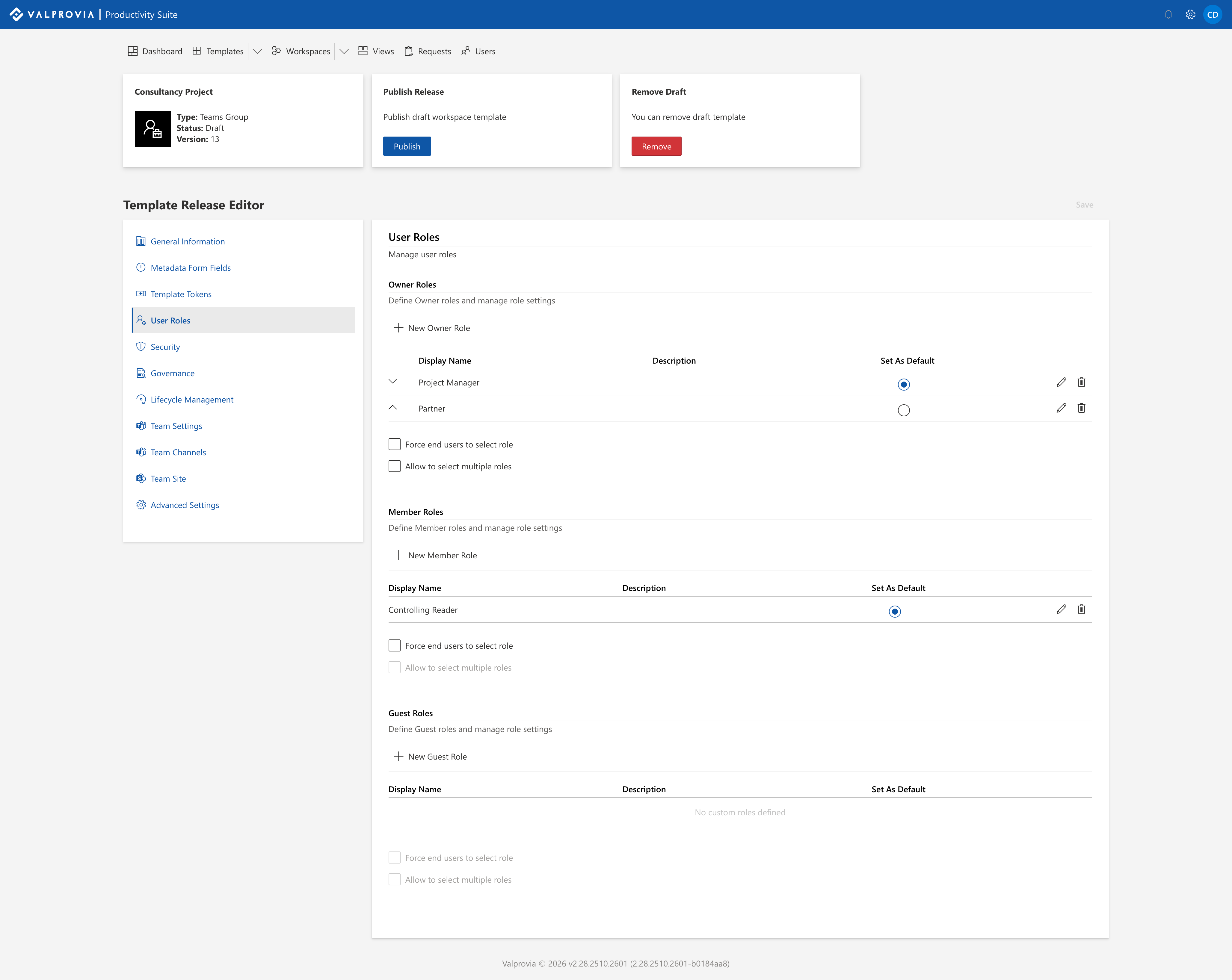
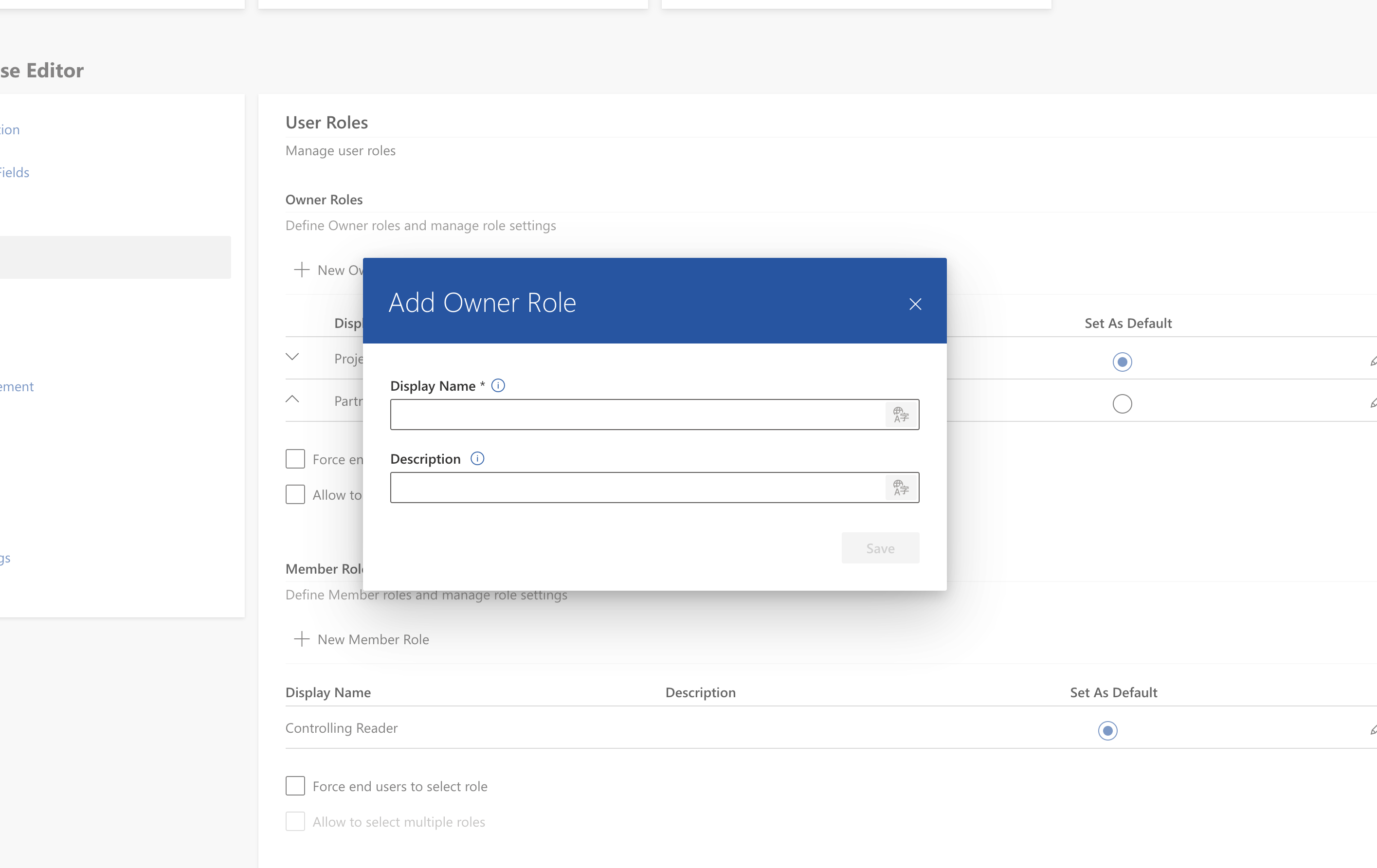
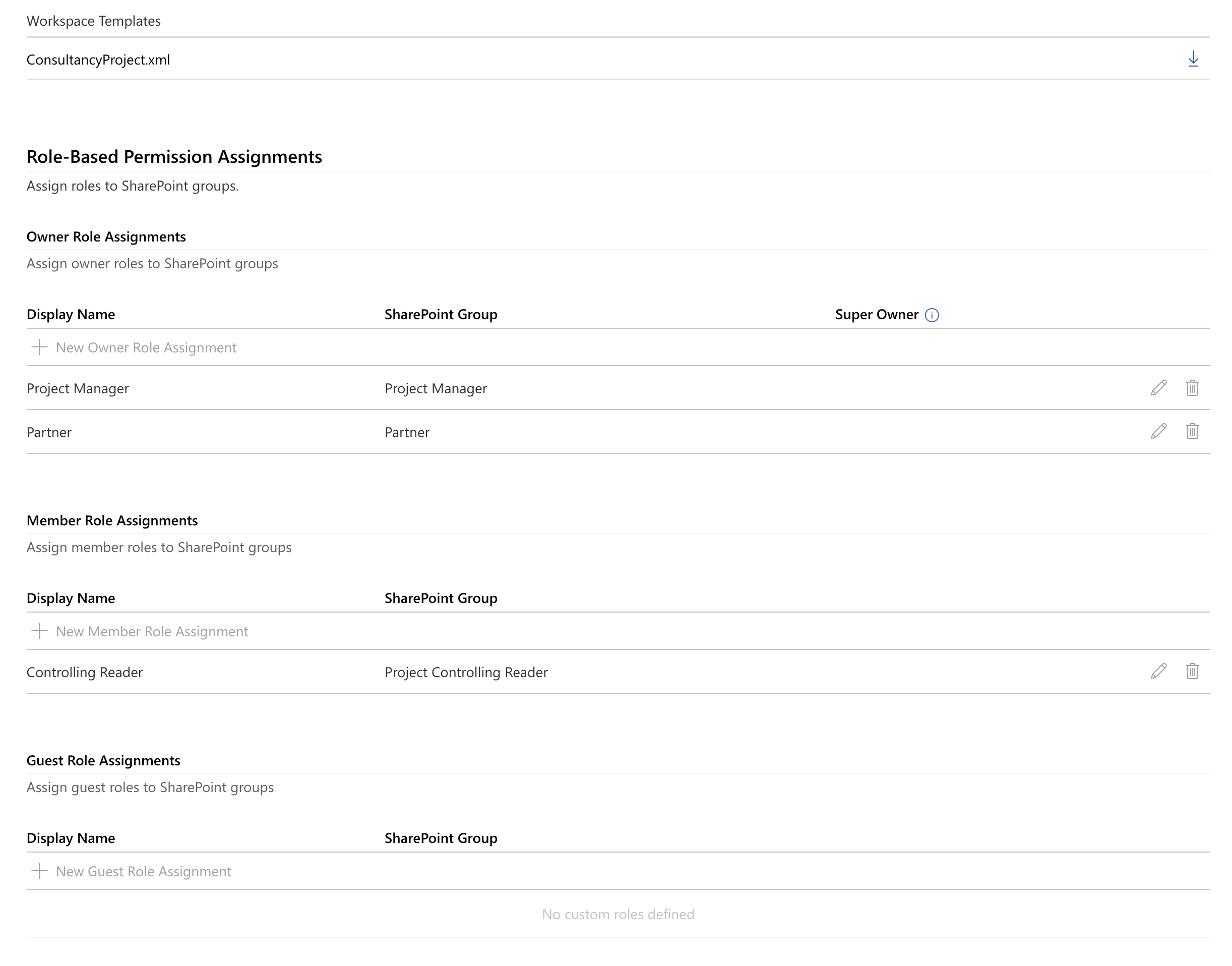
Step 1: Define Project Roles
Administrators define roles needed for daily project work. Unlike Microsoft Teams' implicit guest grouping, Valprovia Governance explicitly distinguishes three user types:
Owners: Example: "Project Manager" (full access), "Deputy" (backup role)
Members: Example: "Team Member" (editing rights), "Controlling Reader" (read-only access)
Guests: Example: "External Partner" (restricted shared area access)
This explicit separation ensures external users receive dedicated roles with appropriate permissions rather than blanket Member rights.
Step 2: Configure Behavior
Two optional settings control user workflows:
- Enforce role selection: Ensures every project member receives a role (essential for regulated environments and audit compliance)
- Allow multiple selection: Enables assigning multiple roles to individuals (useful when someone holds dual responsibilities, such as team member and controlling officer)
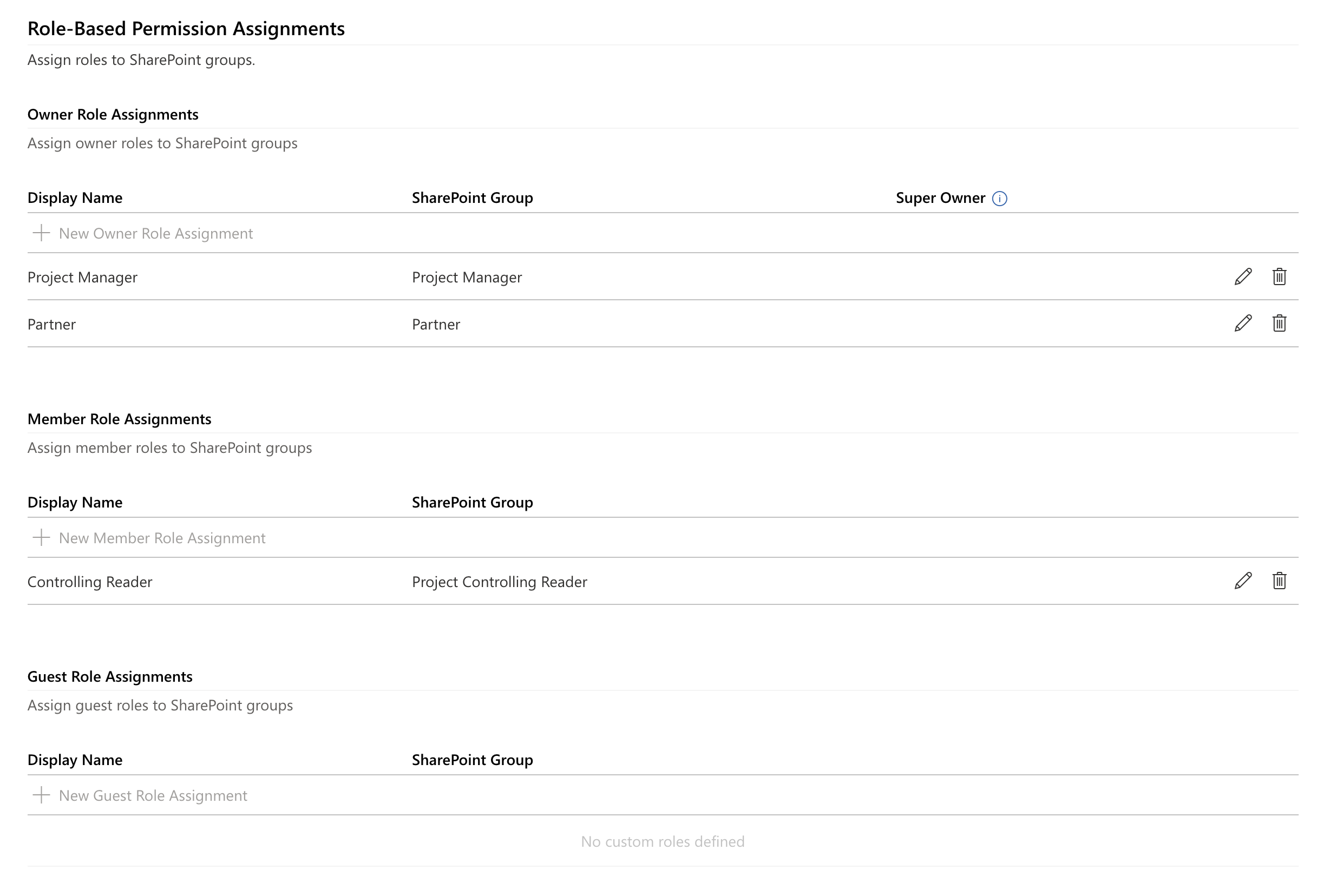
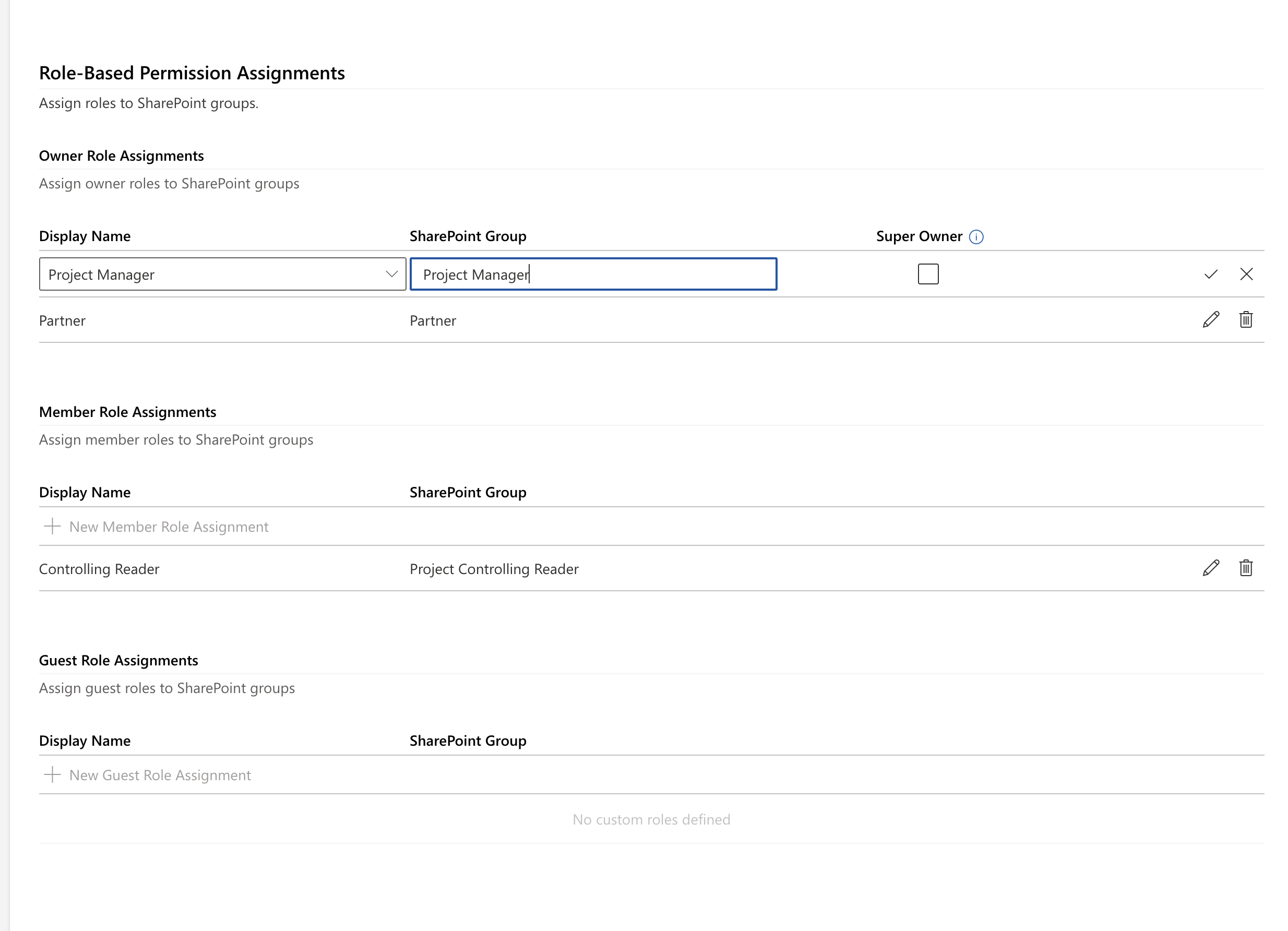
Step 3: Link Roles to SharePoint Permissions
Each role is assigned to a SharePoint group defining folder and library access. If groups don't exist during workspace creation, they're automatically generated.
What Do Project Managers and End Users Experience?
Project Manager Workflow
Instead of filing IT tickets and waiting for permission setup, project managers:
- Open the workspace
- Add a new team member
- Select the appropriate role from a dropdown
- SharePoint permissions are set automatically
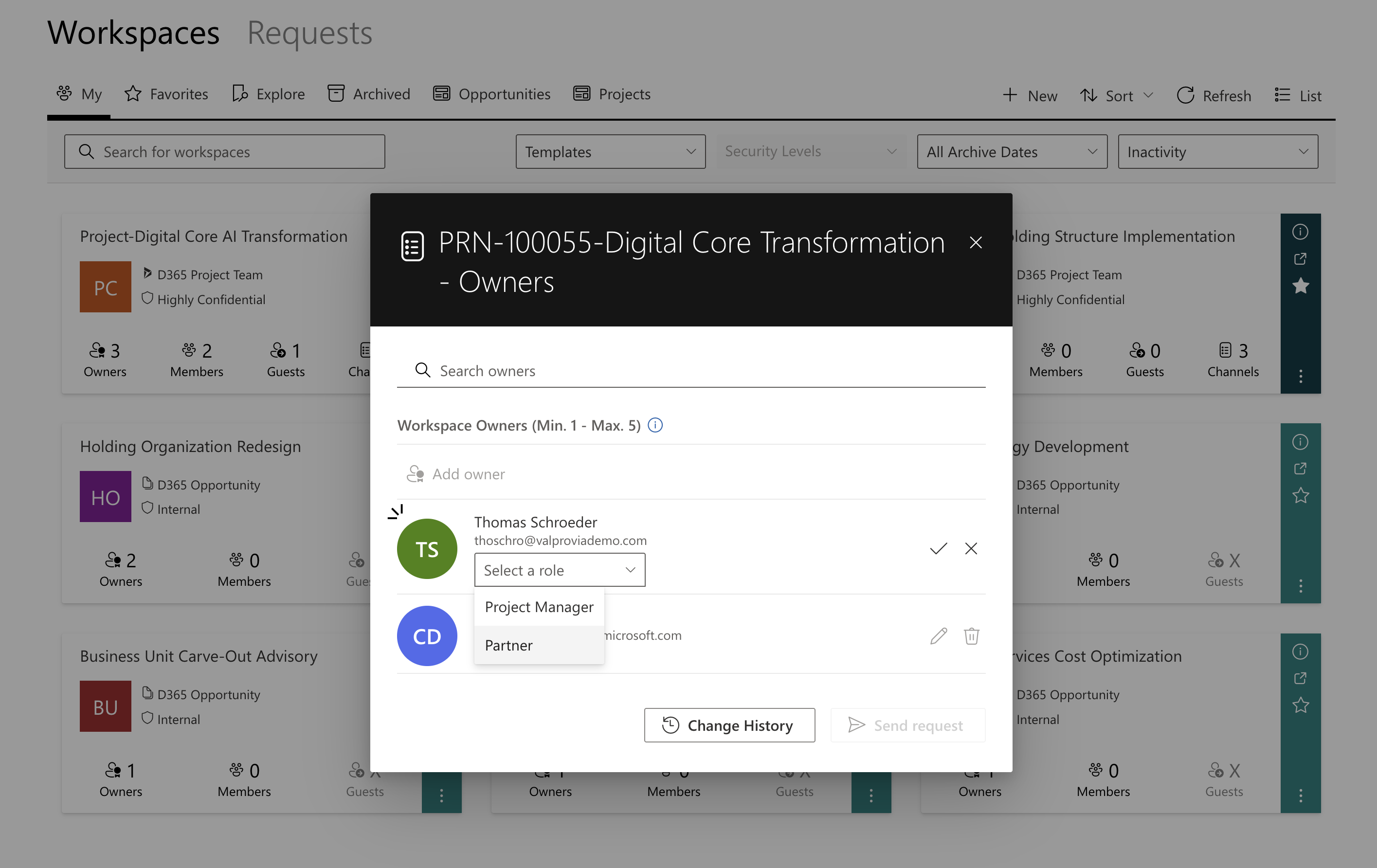
Visual Experience
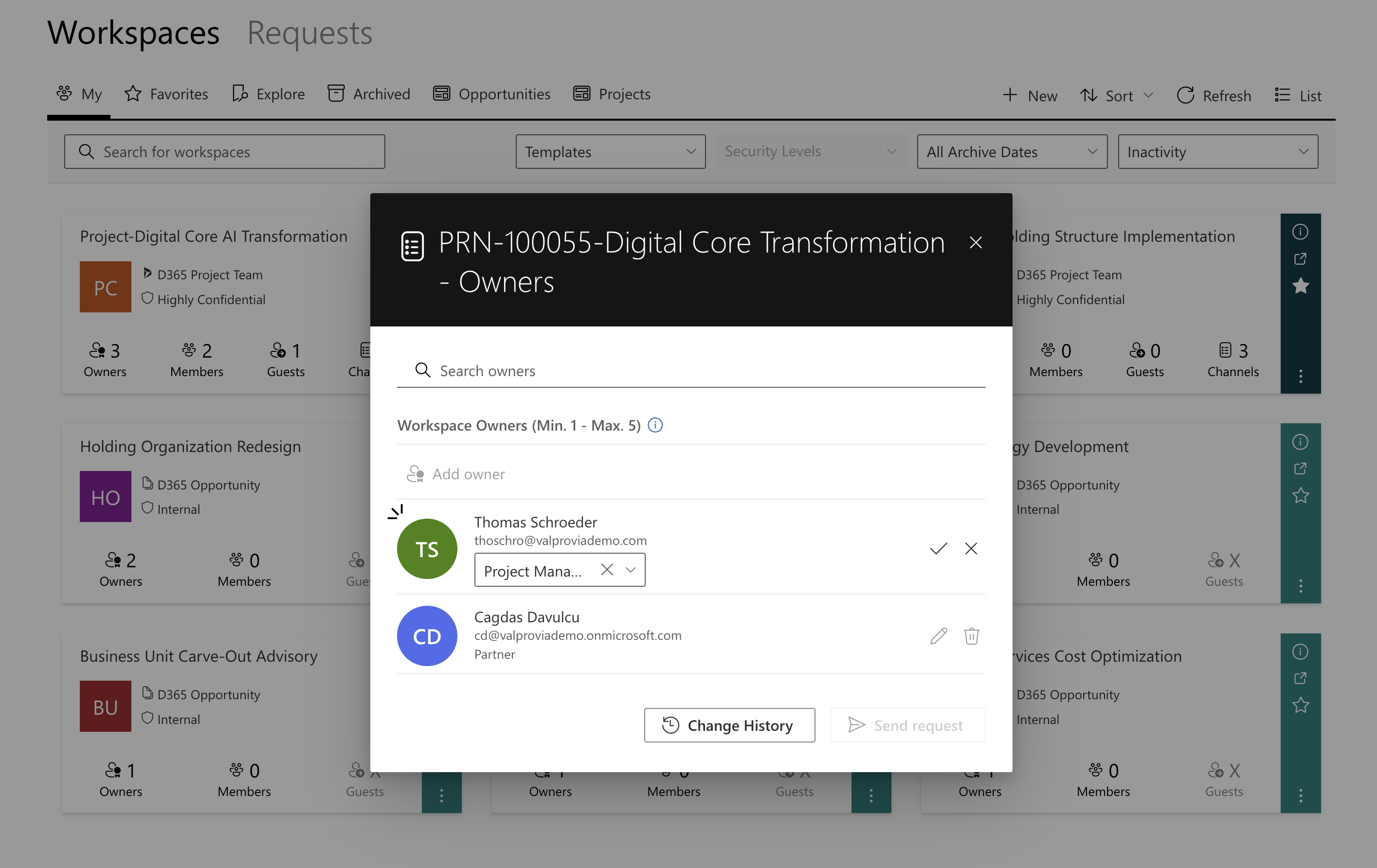
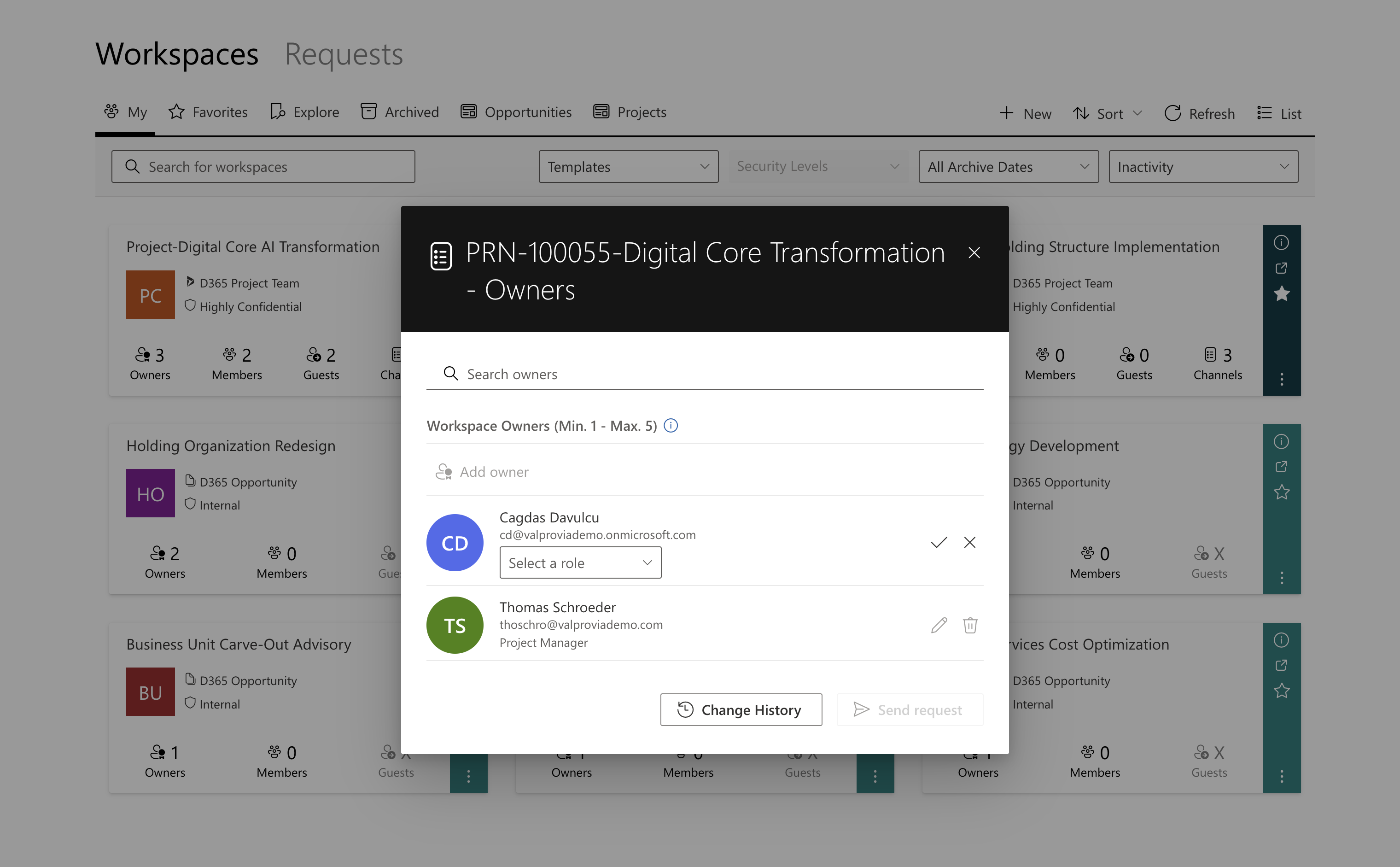
- Role selection appears as a tag next to the username
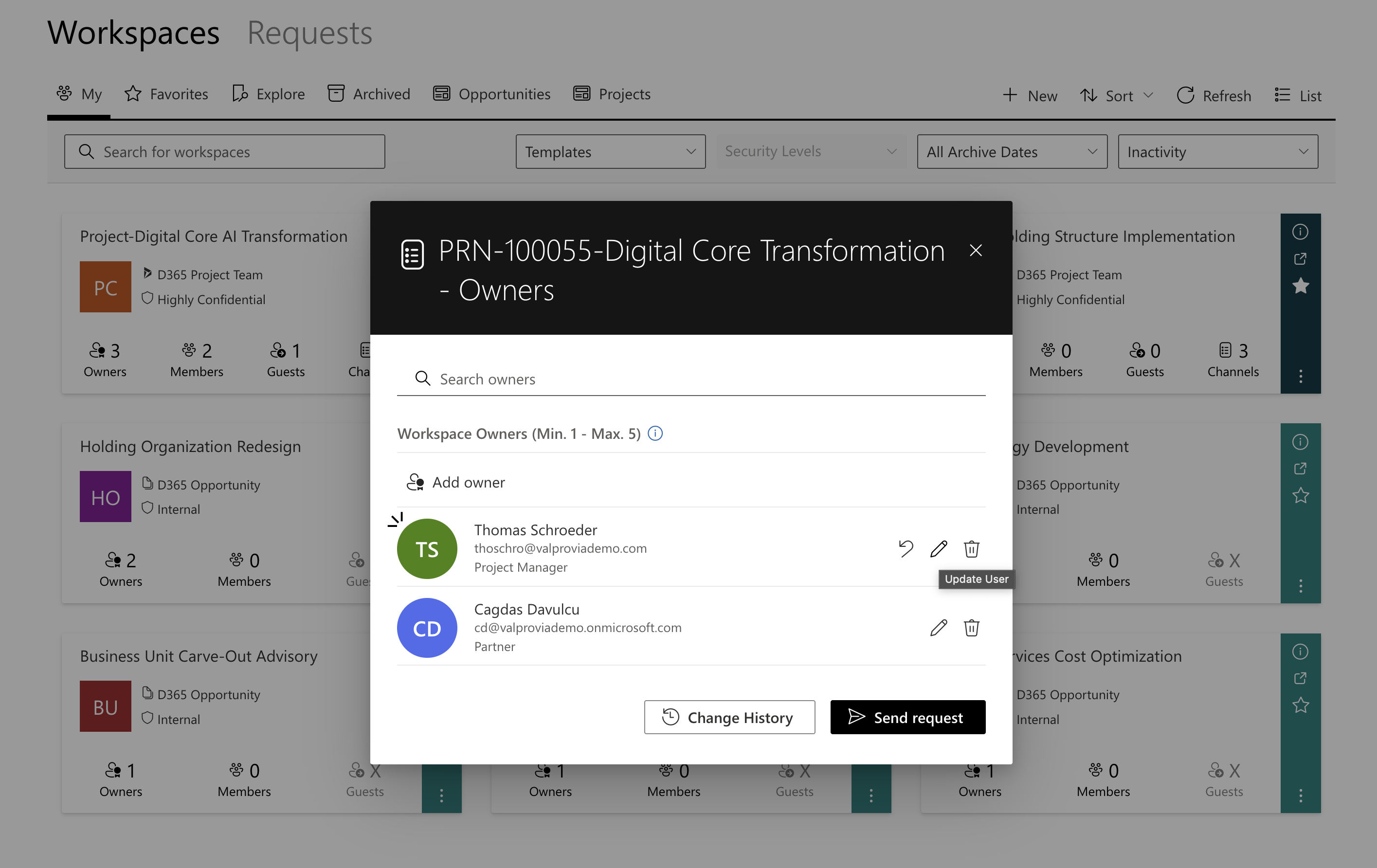
- Roles can be changed or confirmed with a single click
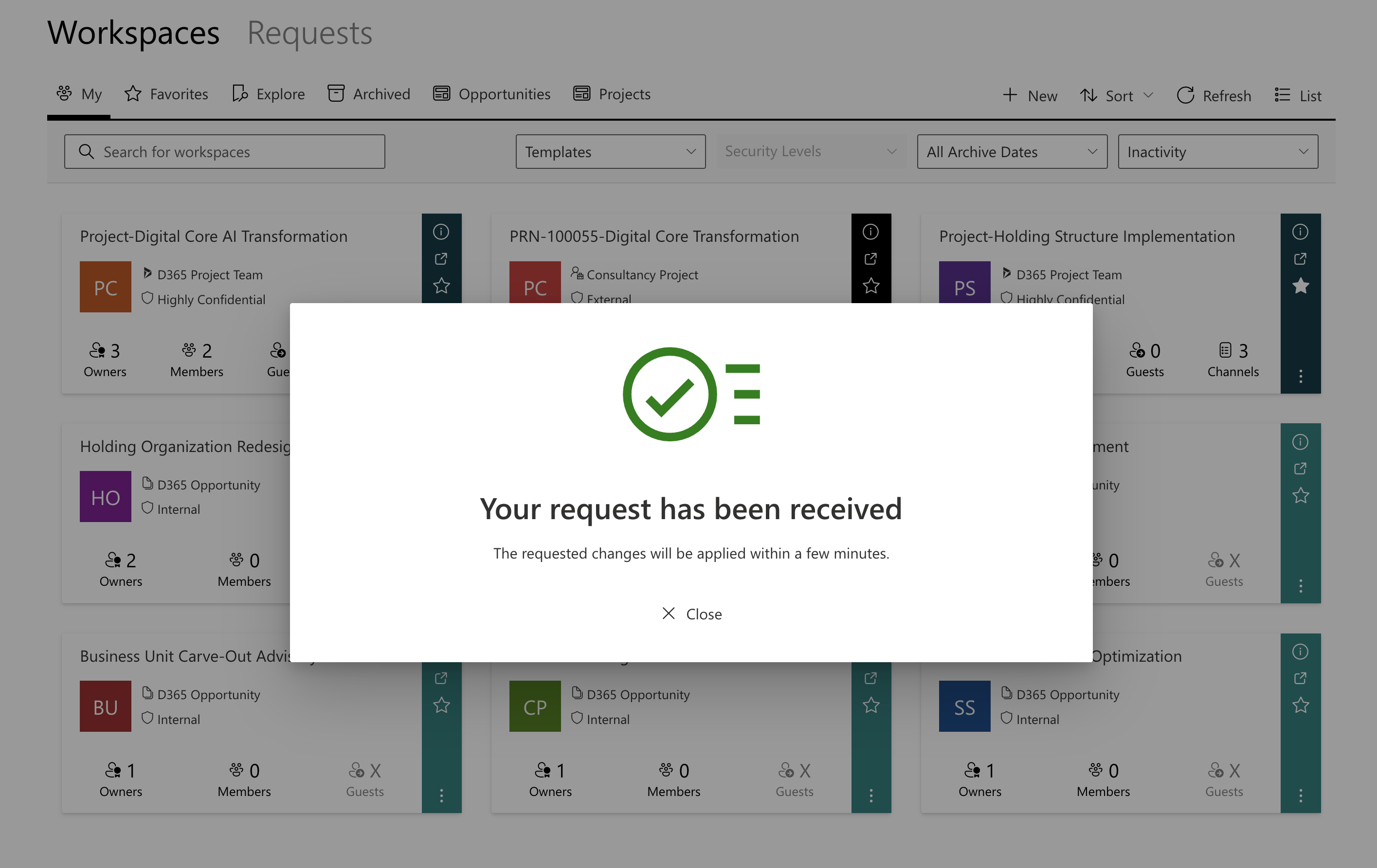
- Confirmation message confirms automatic background processing
- No additional action required from the project manager
Roles Are Not Labels — They Control Real Permissions
Key Distinction
Many governance solutions allow assigning role tags or labels that remain purely visual — labeling users without affecting actual SharePoint permissions. Valprovia Governance links each role directly to a SharePoint permission group, making labels into real, functional permissions that sync automatically with every change.
Concrete Example
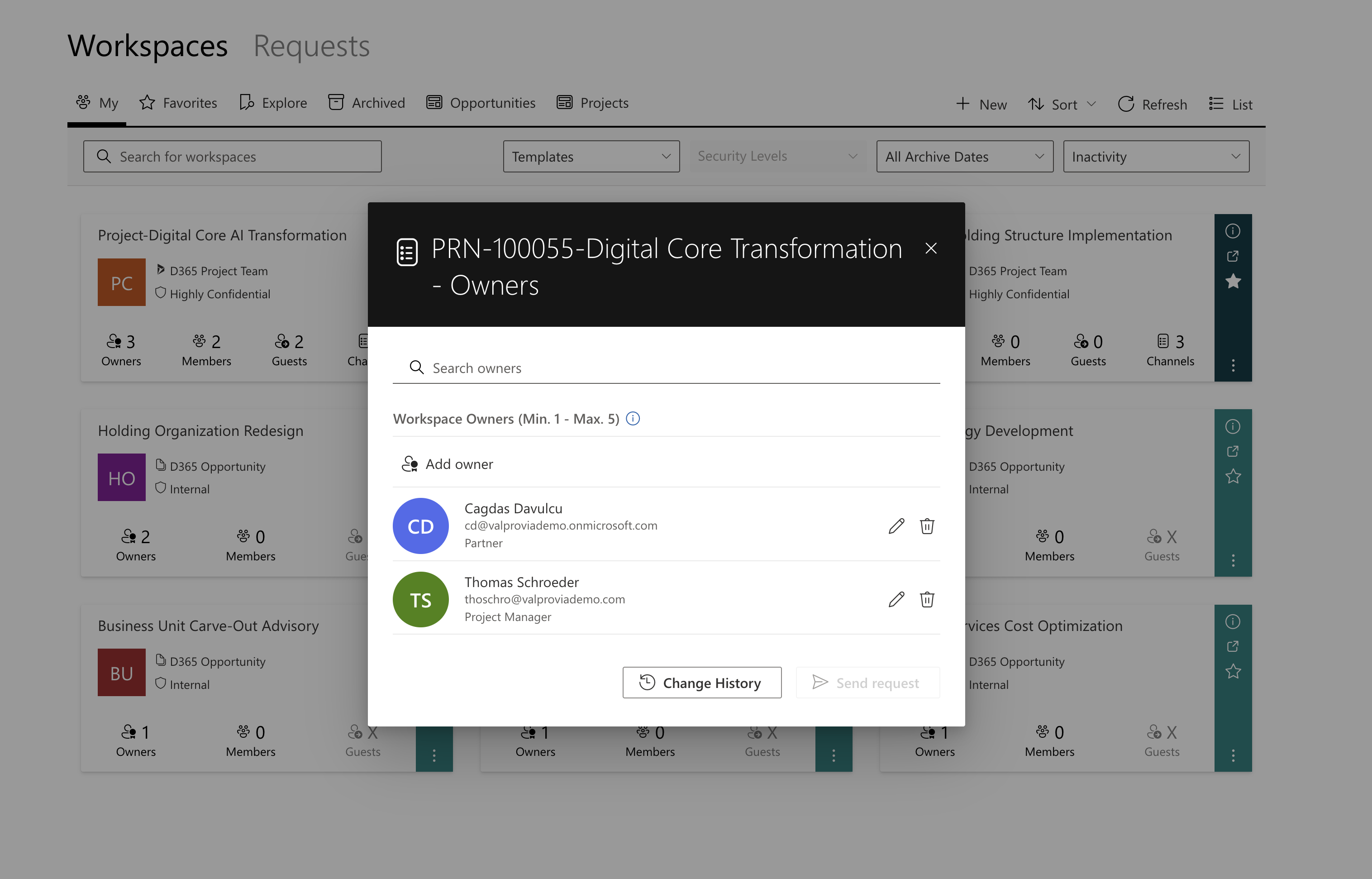
Starting Point: Two users have different roles (Partner and Project Manager), each linked to different SharePoint permission groups.
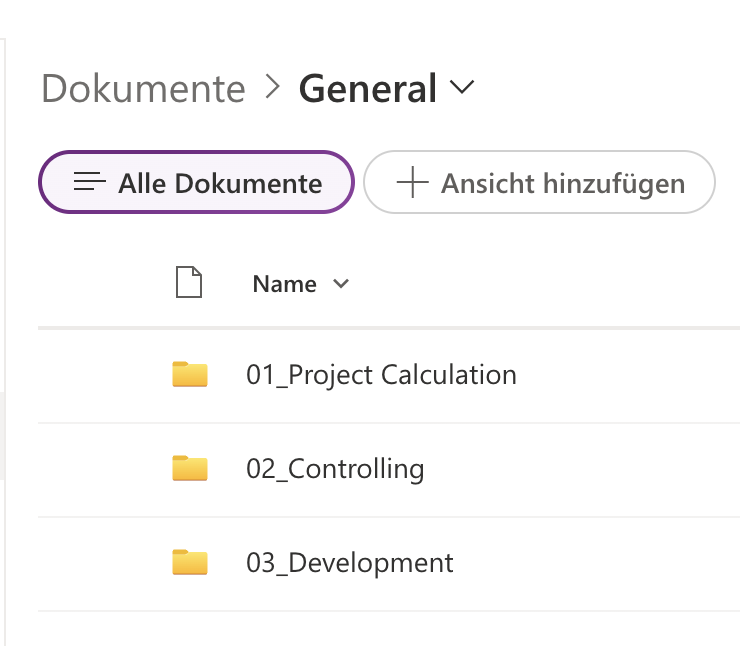
Project Manager Access: Visible folders include:
- 01_Project Calculation
- 02_Controlling
- 03_Development
Role Change to Partner: When the role changes via dropdown, Valprovia Governance automatically removes the user from the old SharePoint group and adds them to the new one.
Partner Access After Change: Only visible folder:
- 03_Development
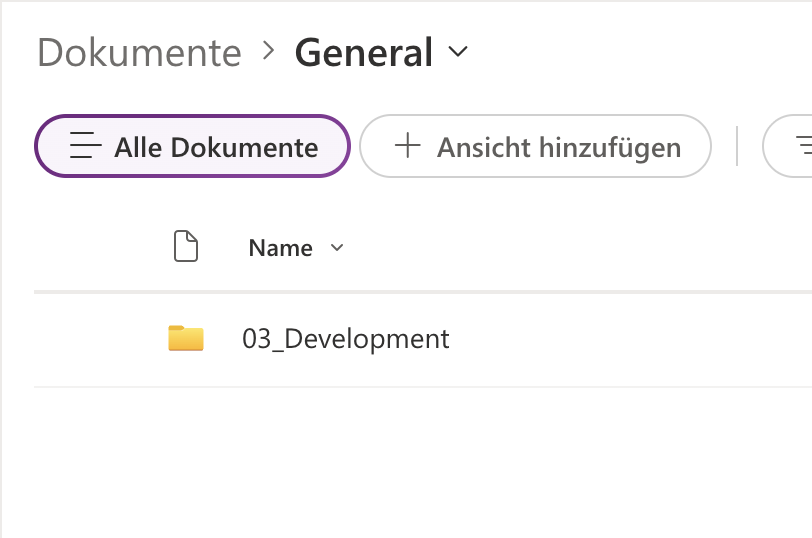
The folders 01_Project Calculation and 02_Controlling become invisible because the "Partner" SharePoint permission group lacks access to them.
What Valprovia Governance Focuses On
Valprovia Governance operates as a preventive governance solution, addressing problems before they occur. Security and permission management form its core — not just at the workspace level but particularly within workspaces, addressing who can do what and why. To verify these permissions stay correct over time, pair it with recurring permissions analytics and access-review campaigns.
Access Profiles embodies this approach:
- Project managers retain permission control without IT tickets
- IT administrators benefit from consistent structures and automatic synchronization
- Compliance officers receive enforced role assignments and automatic protection against uncontrolled changes
- End users experience simple dropdown selection with automatic correct permissions
Frequently asked questions about Access Profiles
How do Access Profiles differ from native Microsoft Teams roles?
Microsoft Teams offers two fixed roles: Owner and Member, with guests treated as implicit Members. Valprovia Governance extends this to three explicit user types — Owners, Members, and Guests — enabling unlimited custom roles per type with individual SharePoint permissions. This allows distinguishing "Project Manager" with full access from "Controlling Reader" with read-only access, plus dedicated external guest roles.
How do organizations with many parallel projects benefit?
Roles are defined once per template. Every new project created with that template automatically inherits identical permission structures. This eliminates manual SharePoint configuration for each project and ensures organizational consistency.
Can external partners and consultants get their own roles?
Yes. Roles are definable for all three user types, including guests. An external consulting partner can have different permissions than an external auditor, with each accessing only designated project areas.
Is Access Profiles suitable for regulated industries with audit requirements?
Yes. The "Enforce role selection" setting ensures every project member has a documented role assignment. This creates traceable permission structures serving as audit evidence.
Conclusion
Project permissions in Microsoft 365 become manageable through Access Profiles. It replaces manual SharePoint configuration with one-time automated processes. Project managers manage permissions independently through simple dropdowns, IT administrators recover time, and compliance officers gain required traceability.
The essential difference: roles become more than labels, controlling actual SharePoint permissions automatically with every assignment, change, and removal. Once configured in templates, every new project benefits from consistent permission structures.


